Quickstart: your first site
This walkthrough takes you from nothing to a published website in about fifteen minutes. Every step is visual — you point, click, and type, the way you would in any everyday app.
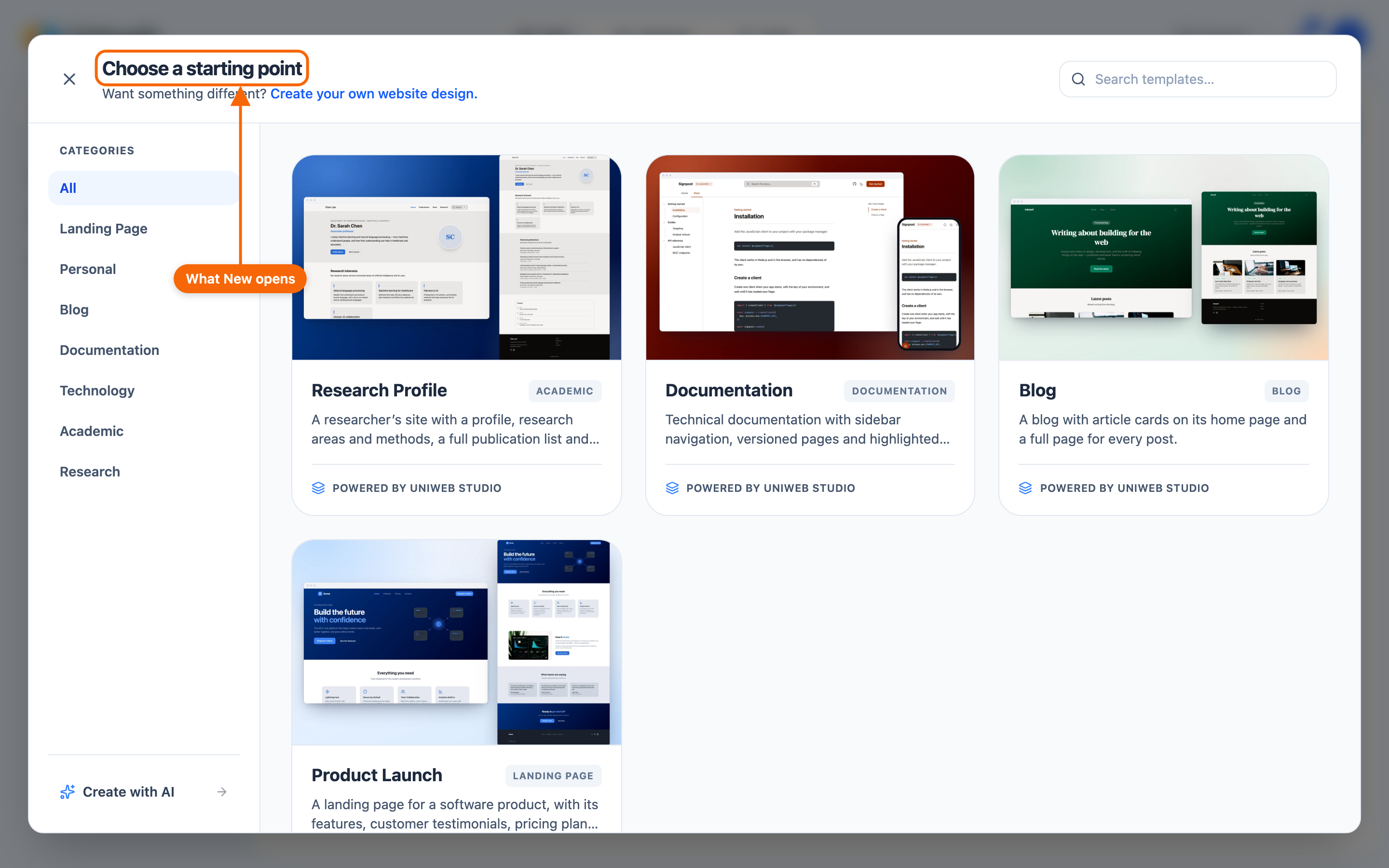
1. Create a website
From the Hub (your workspace), click New on Websites. It opens the template picker — Choose a starting point — and a website is what it creates. (In an organization that starts sites for its members, there's no New; a note says who starts them.)
Choose a template to start from. Don't think of a template as a fixed design to fill in — it's really a set of ready-made sections that work together, plus some sample content to show them off. Pick the template whose style and pieces feel right for your kind of site; everything in it is yours to rearrange, replace, and rewrite. See Foundations and templates for the full picture.
⭐ Pick with a little care: a site keeps the design system its template brings, and that cannot be changed later. Everything else — pages, sections, wording, colors — stays yours to rearrange at any time.
Templates are grouped by the kind of site they suit — categories such as Landing Page, Personal, Blog and Documentation. The template you pick doesn't change what the site costs to publish; that depends on the features you turn on. See Site pricing.
2. Open the Editor and make it yours
Click a template to open its live preview, then choose Use this template: your new site opens straight in the Editor — this is where you work with pages and sections.
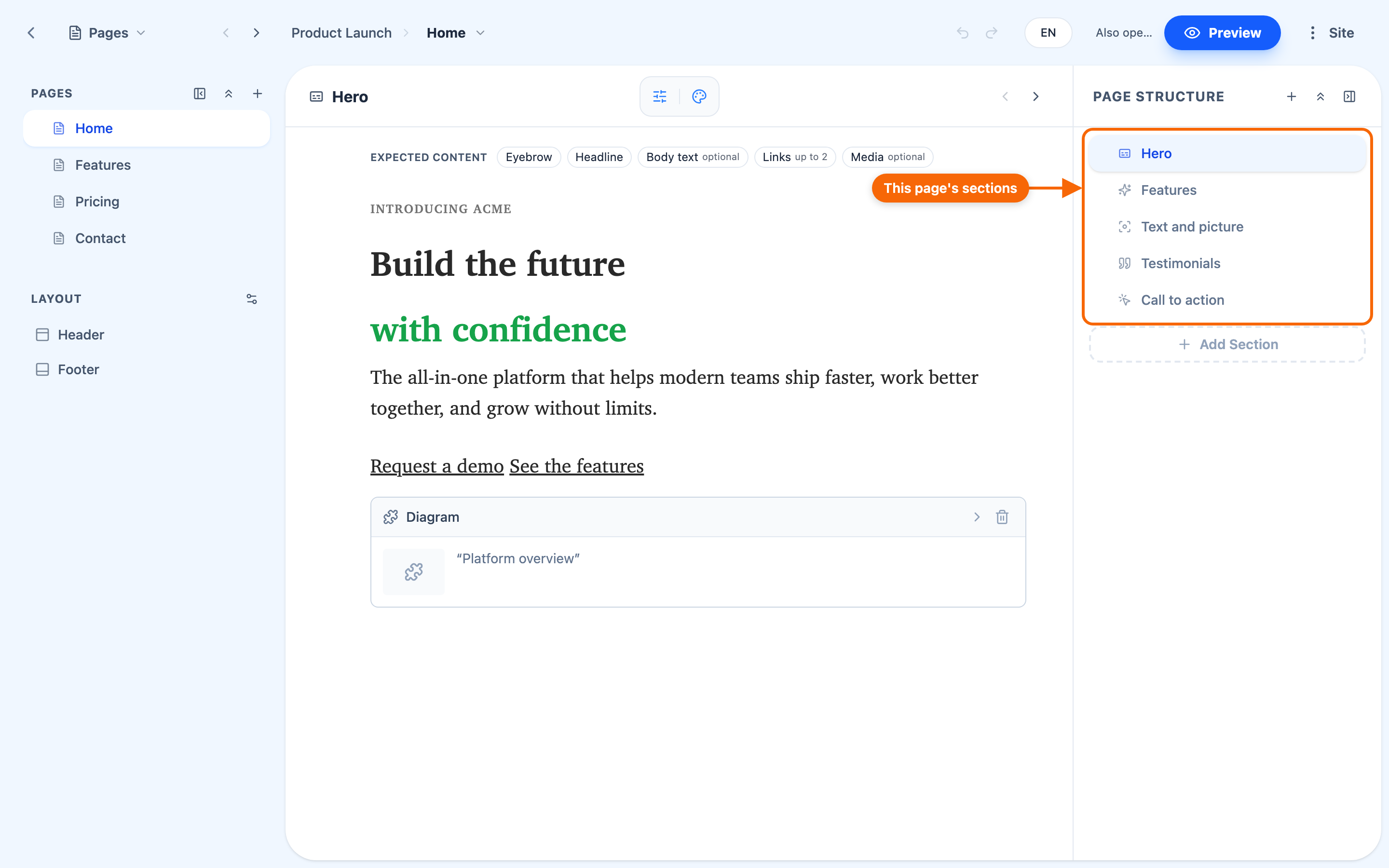
Try the basics:
The Editor shows one section at a time. The Page Structure panel on the right lists the page's sections — click one to open it.
- Edit a section. Replace the sample text with your own. Select text to format it — headings, lists, links.
- Reorder sections. Drag a section up or down in Page Structure to change the flow of the page.
- Add a section. Use + Add Section at the bottom of Page Structure, then pick its type from the list your design system offers.
Don't worry about the design — you cannot knock it out of alignment, whatever you write. Your work is saved as you go; Cmd/Ctrl + Z undoes your typing while you're in a text, and Undo in the editor's header steps back a change to a section, such as adding or deleting one. For the details of each activity, see Working with sections and Writing content.
3. Brand it
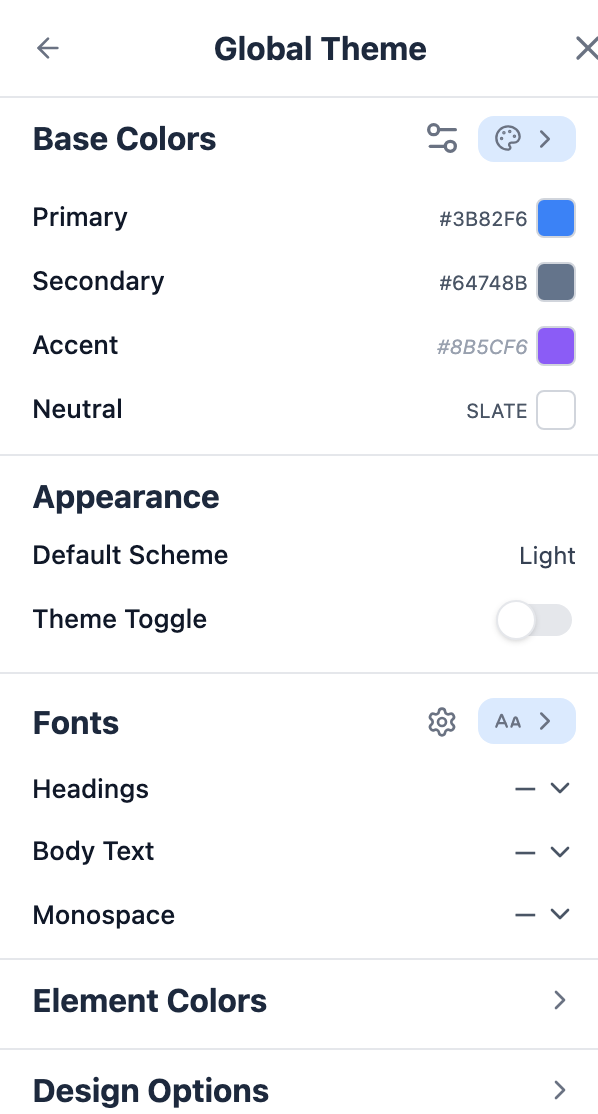
In the Editor, press Preview; its toolbar has Global Theme, the site's theme. Set your colors and fonts so the site matches your brand. The whole site updates at once, and the design holds together because branding is built into the design system. See Theming and branding.
4. Preview and publish
When you're happy, publish — from the Site menu, Publish. Publishing pushes your draft live — the whole site at once — so visitors see your latest work. If it fails, the card says "Your site wasn't published", with Try again.
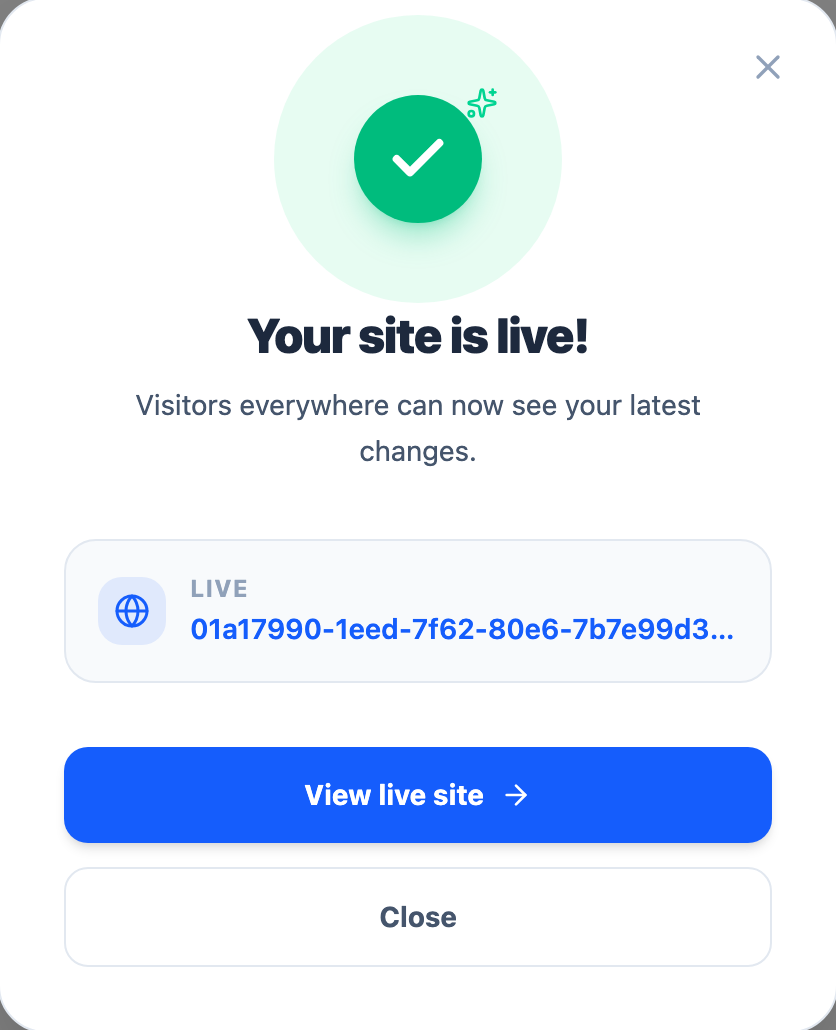
Publishing a live site is where pricing applies: drafts are free to build, and a site is subscribed before it goes live: on a site with no subscription, Publish opens the subscription steps first (unless an organization hosts the site free). Afterwards, Site menu → Hosting and features… shows the subscription and what it includes. See Publishing your site and Site pricing.
5. Point your domain (optional)
You can publish on a Uniweb address right away, and connect your own domain when you're ready. Domain settings live in the site's Settings, under Hosting — or go straight there with Site menu → Address and domains…. See Domains.
What you just did
- Sites are made of pages, and pages are made of sections you choose and fill.
- The design system (Foundation) keeps everything looking consistent — you arrange and write, it handles the look.
- Publishing sends your draft live in one step.
From here, dig into the core concepts to understand the model, or jump straight into the Editor guide.