A tour of the app
This page is a map. It names the main areas of the Uniweb App so the rest of the documentation has somewhere to point. You don't need to memorize it — skim it once and come back when a term is unfamiliar.
The three main areas
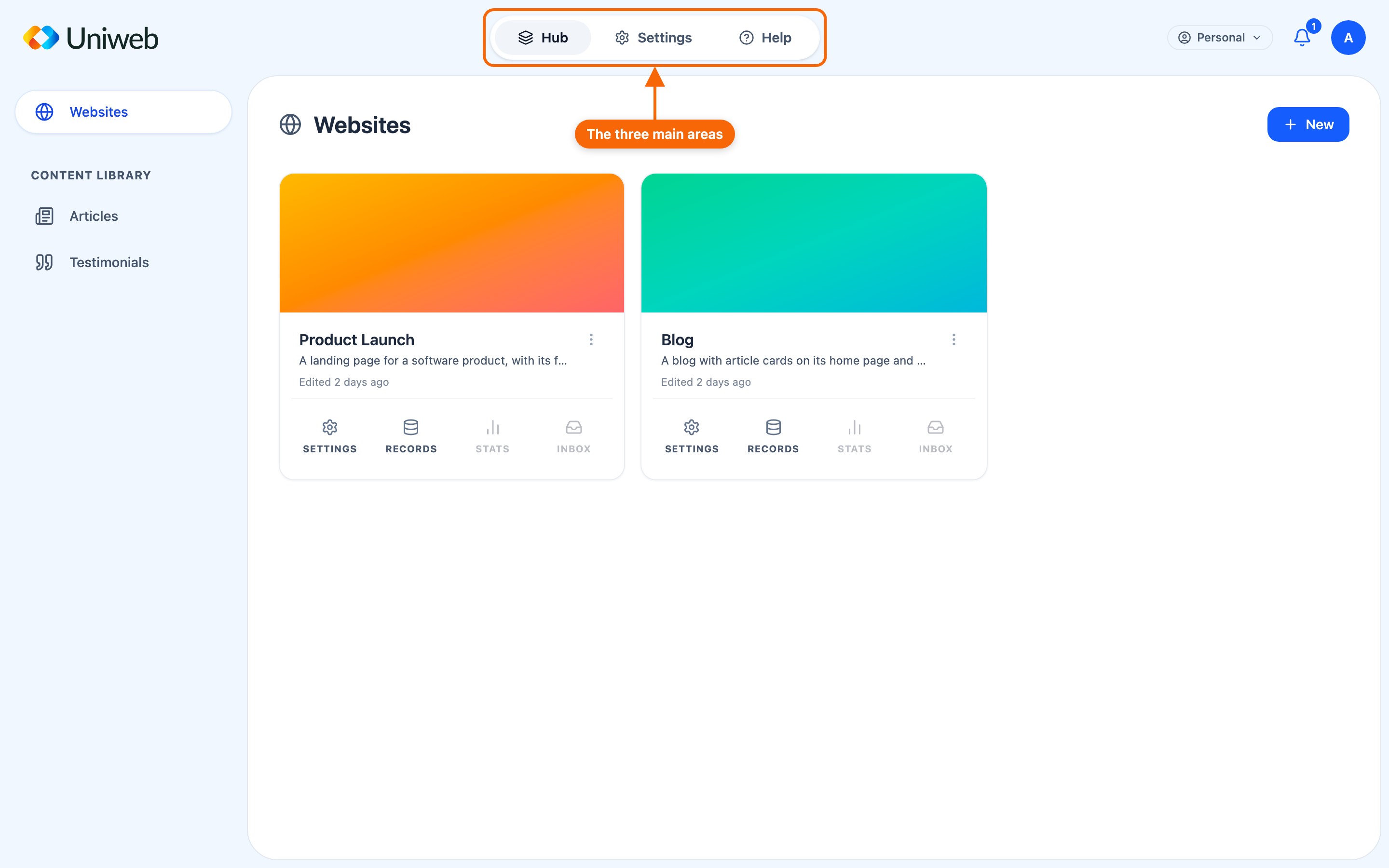
Across the top of the app are three areas:
- Hub — your workspace. Everything you own or have access to lives here: your websites and your structured content.
- Settings — your account: your profile, how the app looks, notifications, and billing. See Settings.
- Help — guides by topic, common questions, and a Get help page with quick fixes.
To their right are the notification bell and your avatar menu — your Workspaces, Settings and Sign out. Once you belong to an organization, a badge there names the workspace you're in and opens the Workspaces page.
Inside the Hub
The Hub's sidebar organizes everything you can work with:
- Websites — every website you can open.
- Content Library — your structured content, one entry per type your workspace uses (commonly Articles); the group appears once your workspace has such content. See About the library.
A site's folders are reached through that site — its Records view, below — rather than from the sidebar. See Folders.
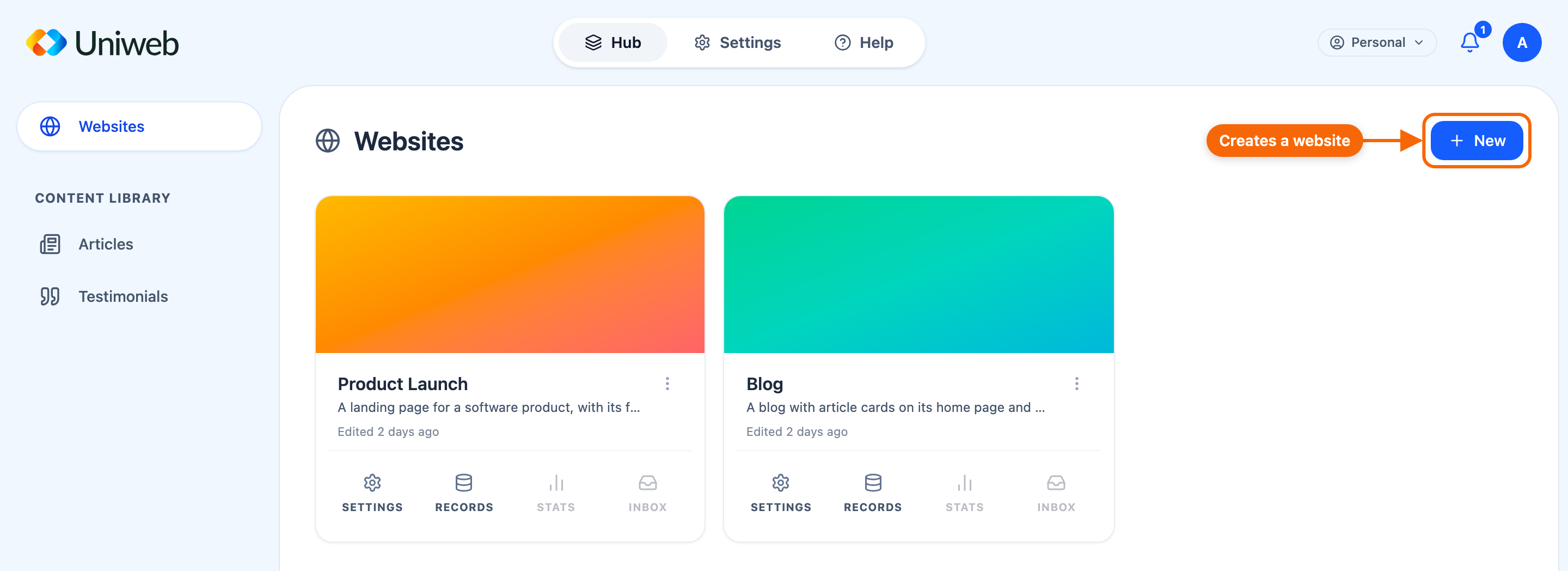
On Websites, the New button creates a website: it opens the template picker. Each content type in the library has its own New. In an organization that starts sites for its members, Websites has no New; a note there says who starts them.
The five views of a website
Every website can be opened in five different views, each for a different job. In the Hub, clicking a website card opens the site on its Pages; the card also has buttons to jump straight to the other views. Once a site is open, the view switcher at the top left moves between them.
| View | What it's for |
|---|---|
| Pages | Where you build the site: pages, sections, content and options. Its Preview shows the site and holds the Global Theme — colors and fonts. |
| Records | The website's content folder — add content and organize it into subfolders. On the card, Records is disabled (the reason shows on hover) while the site can't show live records. |
| Settings | Everything else that belongs to this site: its name, published languages, favicon, design-system version, features, collaborators, publishing (Deploy), domain and billing. |
| Inbox | Submissions from forms on your site. |
| Analytics | Traffic and visitor analytics — the card's button calls it Stats. |
You publish from the Site menu (Publish, or Republish once the site is live) or from Settings → Deploy.
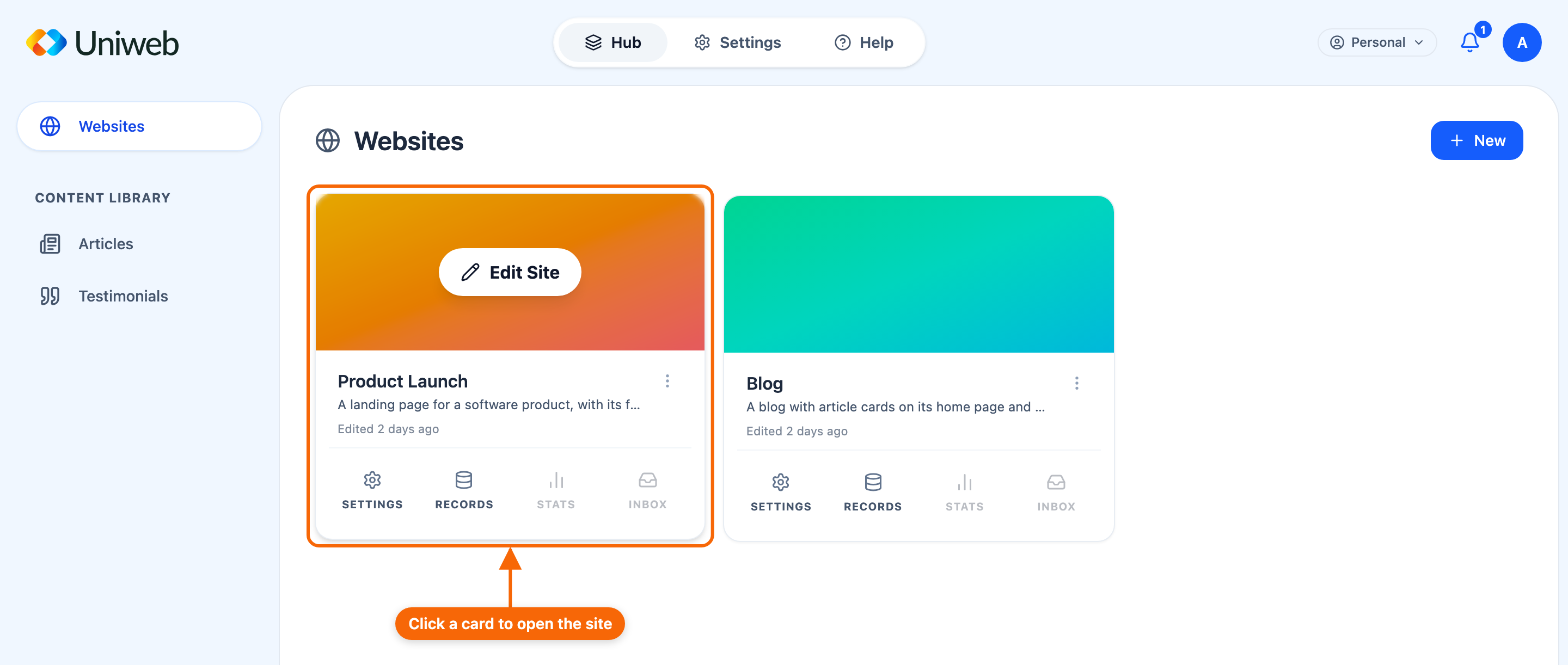
Stats and Inbox stay disabled — even for the owner — until the published site has those features turned on; hovering the button says which is missing.
How content gets onto a site
There are two paths, and most sites use a mix of both:
- Content you write directly on a page (the common case) — text and media you type into sections in the Editor. It goes live when you publish.
- Content pulled from your library — structured items (an Article, an Event, a Person) that live in the library and appear on your site through folders. With the site's live records feature on, it updates without republishing, and collaborators can contribute it.
This distinction matters often enough that it has its own page: Content you write vs. content you link.
Where to go next
- How Uniweb works — the model behind the app.
- Creating a website — start building.
- Glossary — every term in one place.