Working with sections
Sections are the building blocks of a page. Building a page means adding sections, choosing their type, writing their content, setting their options, and arranging the order. This page covers all of that. For writing the content inside a section, see Writing content.
Adding a section
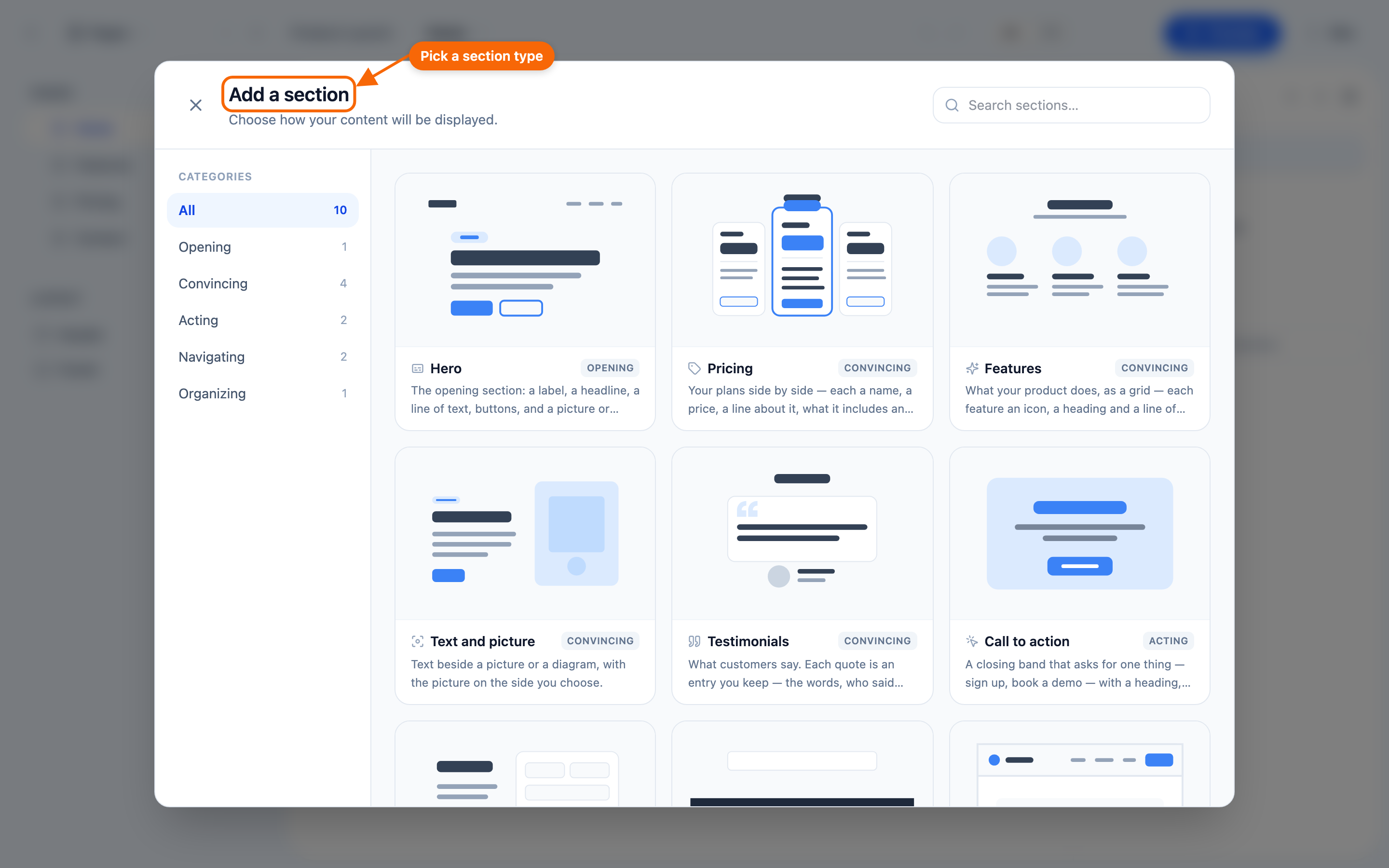
Use + Add Section at the bottom of the Page Structure panel (or the + at its top) to insert a new one. The Add a section gallery shows the types your design system offers — Hero, Features, Team, FAQ, Contact, and so on. Pick one, then choose a Starting preset and whether to include Starter content, and press Add section →.
Knowing what a section expects
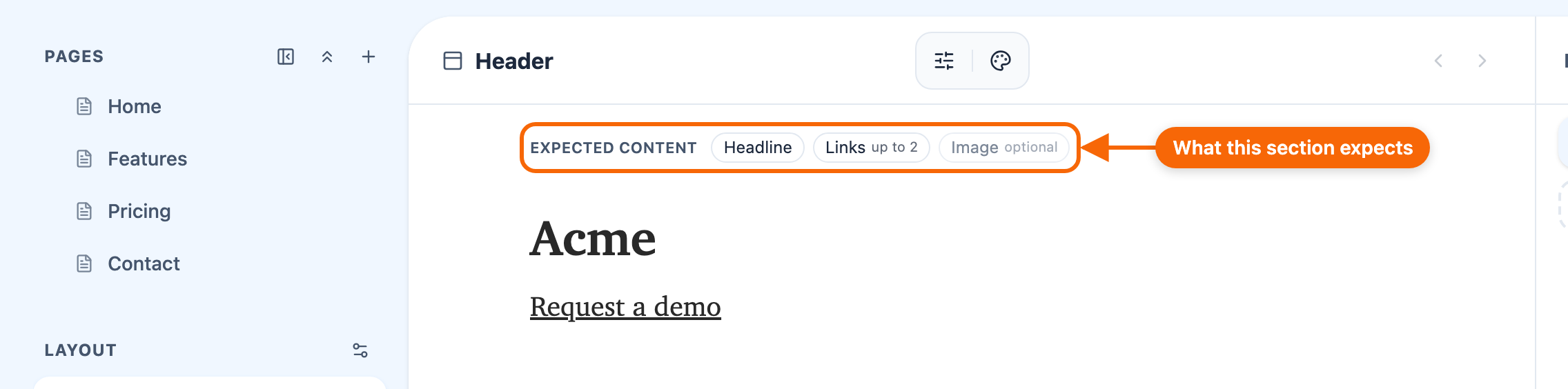
Each section type is designed around certain content. To see what fits:
- Expected content — above a section whose type declares what it expects, a strip lists it in the app's own words, with a badge where it matters (for a header: Headline · Links, up to 2 · Image, optional). A chip dims when that element is missing and turns amber when the count is off. Clicking the section's type name in its toolbar shows or hides the strip. It is the most direct answer; not every section type declares one.
- Sample content (on a newly added section) demonstrates a good fit.
- Experimentation is safe: sections ignore content they don't use, so trying something never breaks anything.
Starter content
When you add a section, the Starter content switch in the add dialog is on by default: the new section arrives with sample content showing what it is built for. Replace it with your own. Turn the switch off to start empty.
A section's type is chosen when you add it. To use a different type, add a new section of that type and move your content across.
Setting a section's options
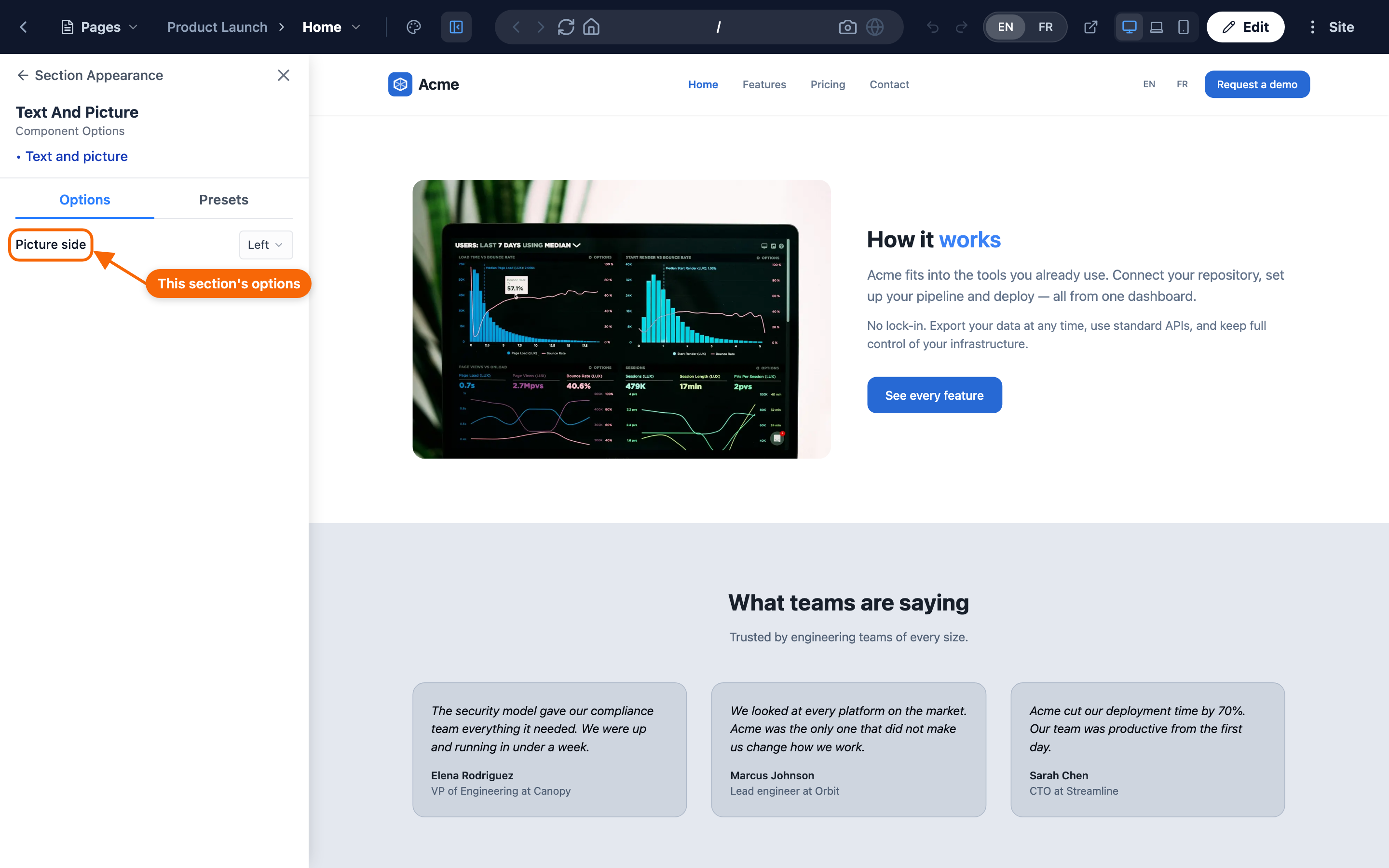
Beyond content, each section offers options — layout variants, display toggles, style choices — in its settings — the section toolbar's Component Options (beside Custom Colors & Styles, Record source for a section that shows records, and the Previous section / Next section arrows). They appear as ordinary visual controls: menus, switches, color pickers, and the like. The app shows exactly the options that section has and nothing more, so you can't set something that doesn't apply. These options are exactly what the section's designer built in; if an option you want isn't there, the design system doesn't offer it, and that's what keeps every site consistent. See Foundations and templates.
Reordering, moving, and copying
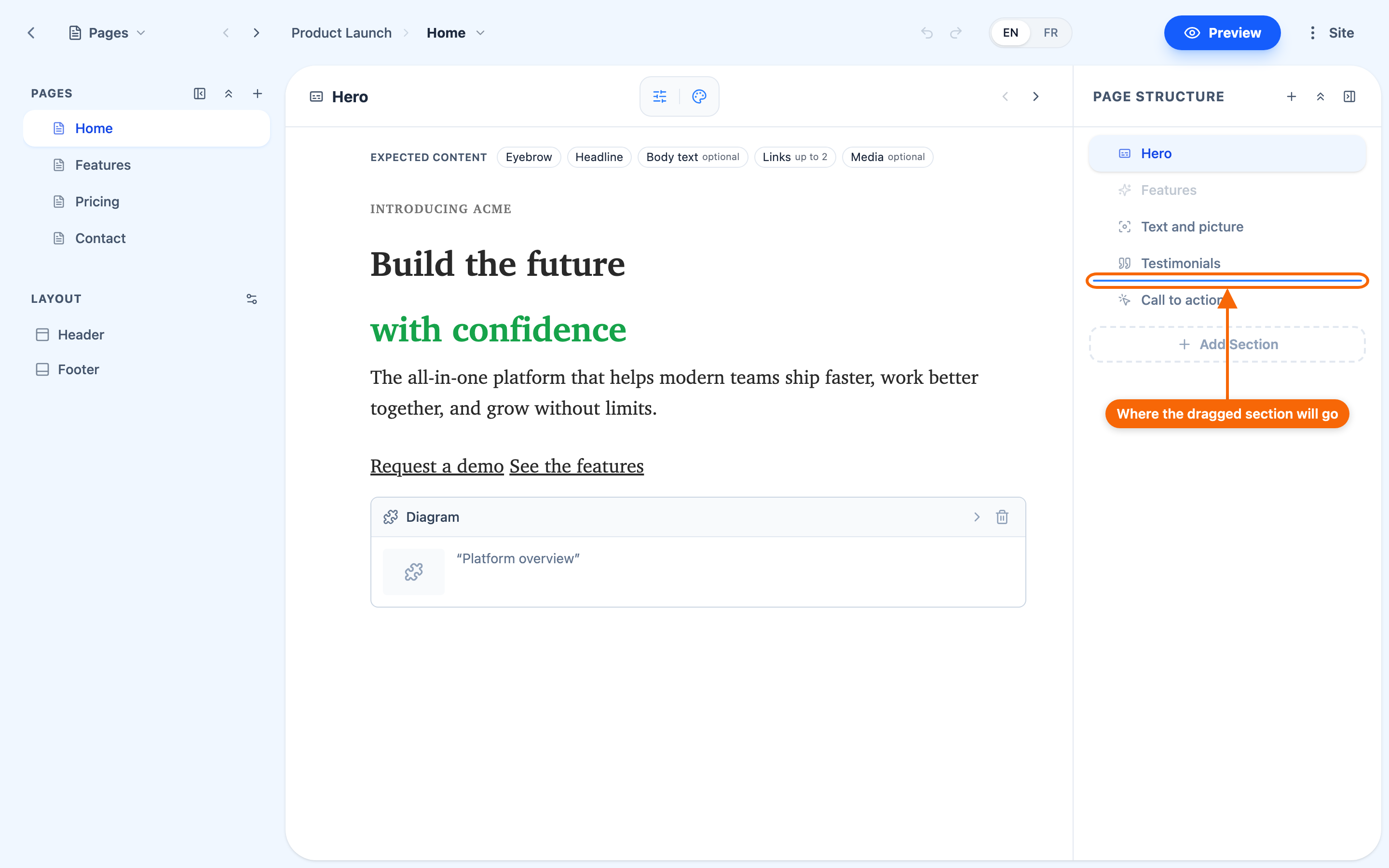
- Reorder — drag a section up or down within a page. Reordering is the easiest way to experiment with how a page reads.
- Hide — take a section out of the page without deleting it (right-click it in Page Structure). It drops out of the preview, and its row dims with a Make visible button to bring it back. A hidden section, and any sections inside it, is left out of the published site until you make it visible and publish again.
- Copy and paste — copy a section and paste it before or after another section, or into one that holds nested sections.
- Delete — remove a section at any time (right-click it in Page Structure); it asks first (Delete Section).
Most pages are a flat list of sections, but some section types can contain nested sections. Rearranging is safe for the design — the sections keep their content wherever you put them — and Undo in the editor's header (⌘Z) steps back an add, a delete or a move while the editor is open.
Selecting linked content for a section
Some section types are designed to display content from your library — a blog list, a team directory, an events calendar — rather than hold content you type. For those, you choose a query — a saved selection of your site's Records — in the section's Record source. That's covered in Displaying content from the library.