Writing content
When you edit a section, you're in a focused writing environment. You provide the words and media; the design system provides the look. This page is about content you write directly into sections — for content pulled from your library, see Displaying content from the library.
Writing text
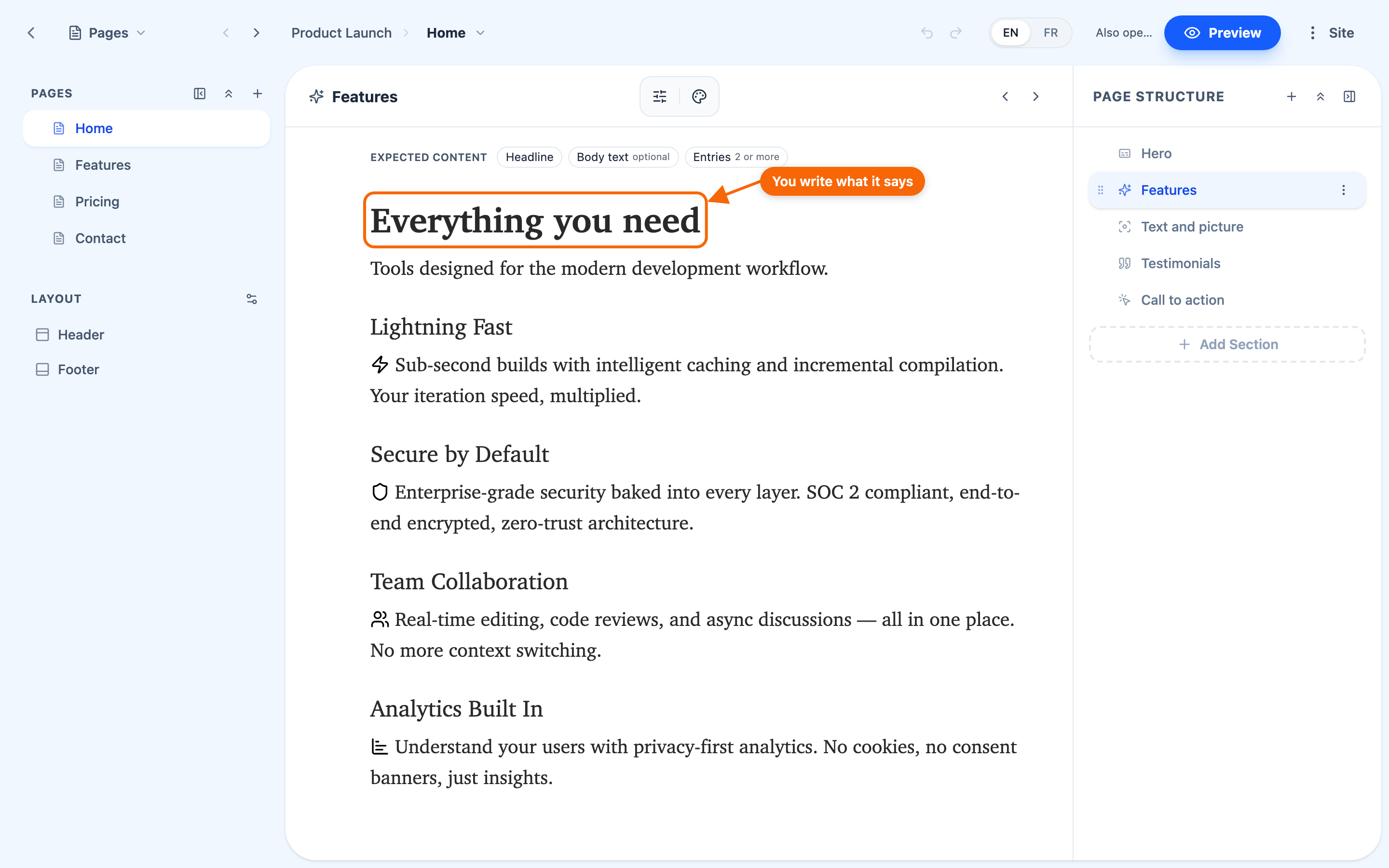
Writing in a section feels like any word processor you've used: click in and type, and use the formatting controls for headings, paragraphs, lists, and links. There are no special codes to learn and nothing to type by hand — you format with buttons, the way you'd expect.
What you don't do is choose fonts, sizes, or colors as you type; those come from your design system and stay consistent across the site. You focus on what it says and its structure; the Foundation handles how it looks.
Adding media
The insert menu is grouped — Media, Blocks, Callouts, Data, More — and adds images, videos (YouTube and Vimeo included), documents, icons, code, dividers, buttons, math, tables, forms and components. One important rule:
Whether media appears depends on the section type. A Hero might show a background video; an FAQ might ignore video entirely. If a piece of media isn't showing, the section simply isn't designed to display it — try a section type made for that media, or check the section's options.
This is the same principle as everywhere in Uniweb: sections use the content they're designed for and quietly ignore the rest, so nothing breaks when you experiment. See Pages and sections.
Links
Add links to other pages on your site — or to a section of a page — or to external addresses. The link dialog can also Send an email or Call a phone number, and offers Open in new tab and Show as a button. Internal links keep working as your site grows; the design system styles links consistently.
Let the section guide you
If you're unsure what to write in a section, the Expected content strip above it — where its type declares one — tells you what content it expects, and a newly added section's sample content shows a working example. See Working with sections.
Tip: drafting with an AI assistant
You can use any AI assistant (ChatGPT, Claude, and others) to help draft section content. The trick is to tell it the section types you're filling — "I have a Hero, a Features section, and an FAQ" — because those names are common web terms the assistant understands well. Then paste the results into your sections. It's a fast way to get a first draft you can refine.
What changes go live, and when
Content you write directly is part of your draft until you publish. Publishing sends the whole site live at once. If you've edited a section and visitors don't see it yet, publish. See Publishing your site.
Getting something back
While you're typing, Cmd/Ctrl + Z undoes your typing. Everything else — sections and pages added, deleted, moved or renamed, their settings, and the Global Theme — is undone with Undo in the editor's header (or ⌘Z outside a text), which names the change; Redo is ⇧⌘Z. Text you've finished editing isn't on that history. ⚠️ That history is cleared when you reload or leave the editor, and there are no saved versions to return to. What you have beyond that is the draft-and-publish boundary — visitors see what you last published, so an unpublished mistake is yours alone to correct.