Theming and branding
Branding is the part of design that is yours. The structural design comes from your Foundation, but colors and fonts are always under your control — that's how you make a site unmistakably yours without risking the design. This page covers the theming you can do. Site-wide theming is in the Editor: press Preview, then Global Theme in its toolbar.
What you can control
Theming in Uniweb is real and substantial, even though structural layout is locked:
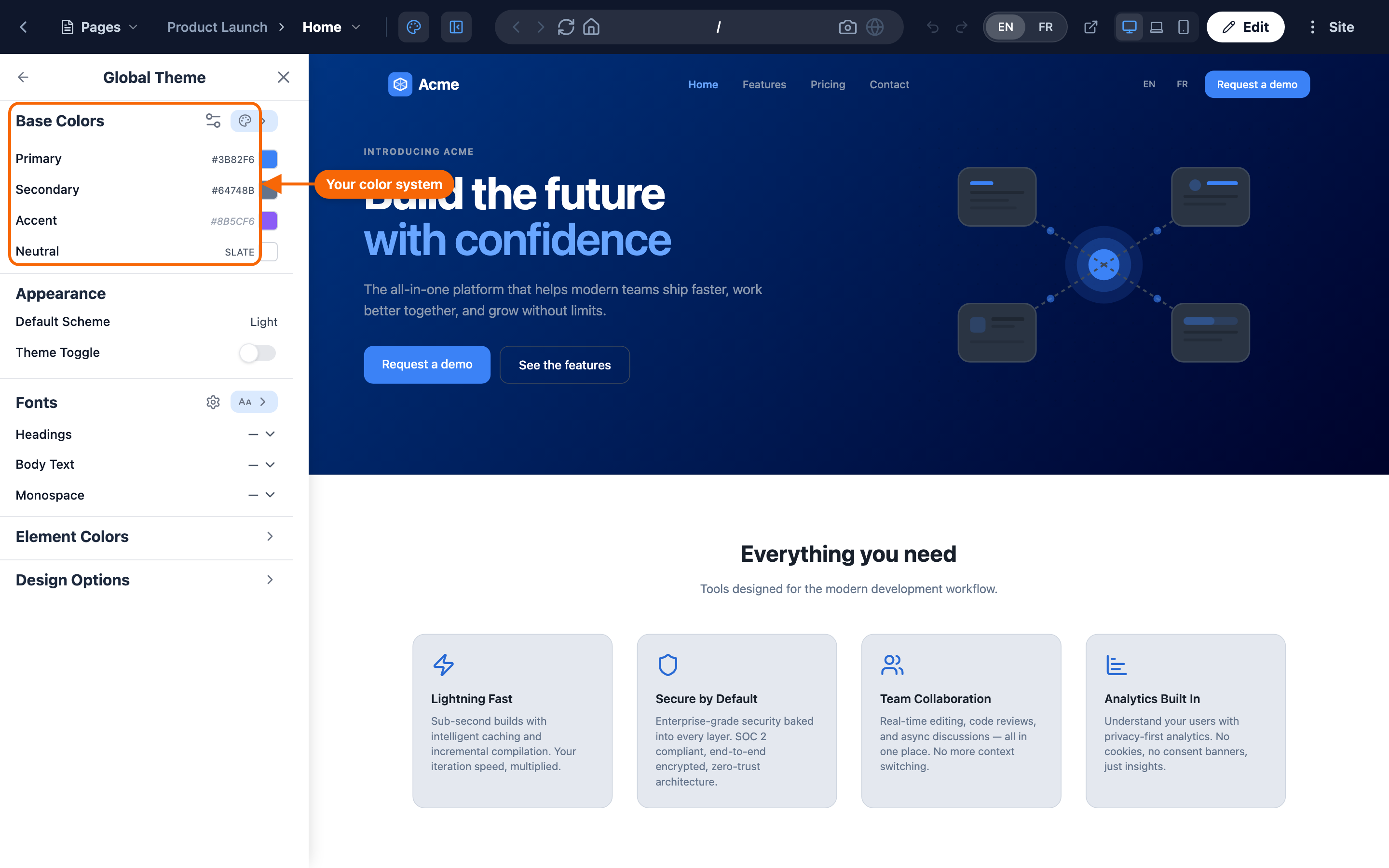
- Colors — a coordinated color system: primary, secondary, accent, and neutral, each with a full range of shades from very light (50) to very dark (950).
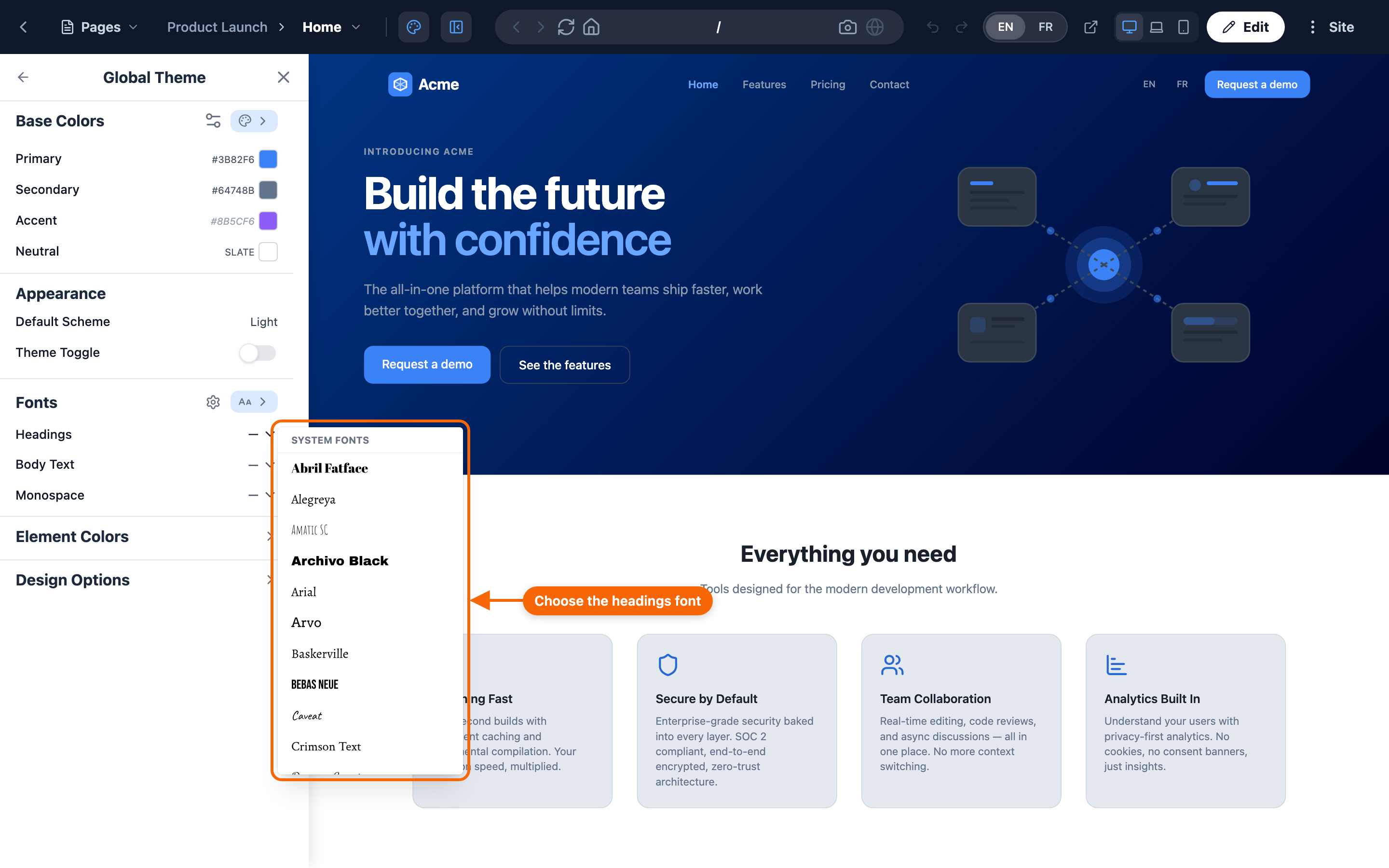
- Fonts — typefaces for headings, body text, and other elements.
- Element colors — common elements like headings, links, and buttons can be colored individually.
These work because the design system is built to support theming. The Foundation defines the structure; you define the brand.
Setting colors
Open Global Theme and set your color system. You choose the core colors; the design system uses them consistently everywhere — so changing your primary color updates buttons, links, accents, and more across the whole site at once, all in keeping with the design.
The shade range (50–950) means each color isn't a single value but a family of tints and tones the design draws from for backgrounds, borders, hover states, and so on. You set the color; the system picks the right shade in each place.
Setting fonts
Set typefaces for headings, body text, and other elements, depending on what your design system exposes — pick a ready-made pairing, or choose fonts yourself with Manage Fonts. As with colors, the change applies site-wide and stays consistent.
The Global Theme also sets whether the site shows in light, dark, or follows the visitor's system setting, and theme changes are steps in the editor's one Undo / Redo history (⌘Z / ⇧⌘Z), from the edit header or the Preview's.
Section-level overrides
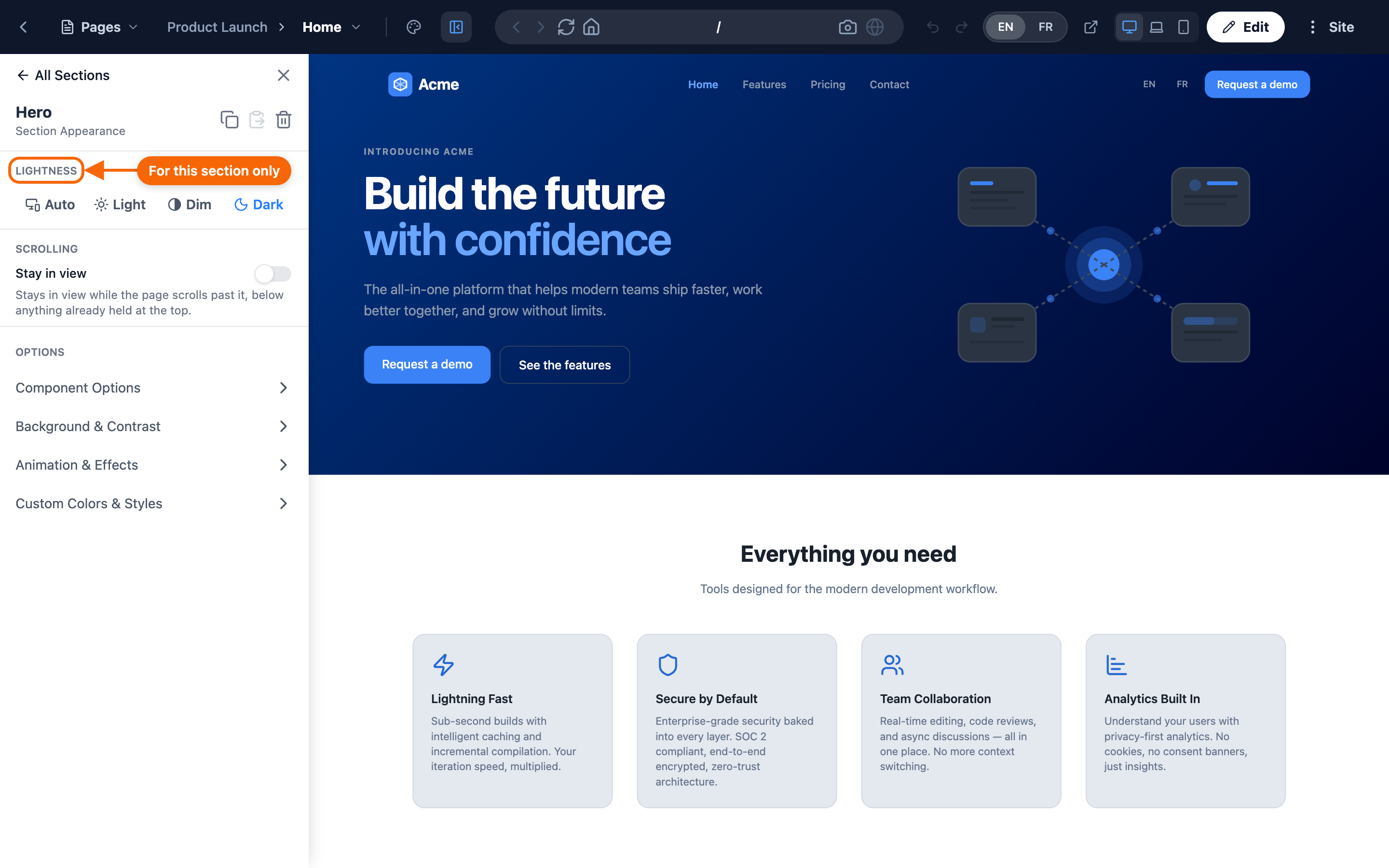
Global theme settings can be overridden on a single section. The classic example: a dark hero section with light text, while the rest of the site stays light. The override applies to that section only, and the rest of the site is untouched.
A section's style
Beyond its theme, a section's style — in the Preview's Style Panel — can include:
- a background: a gradient, an image or a video, with an overlay and a readability mask so text stays legible on top (Background & Contrast);
- an animation (Animation & Effects);
- custom colors for that section (Custom Colors & Styles).
In the same panel, under Scrolling, Stay in view keeps the section on screen while the page scrolls past it — "below anything already held at the top."
Which setting wins when two apply
When several settings touch the same thing, they layer like this, each able to refine the one before it:
- Design system defaults — the structural design and base styles.
- Global theme — your colors and fonts, set in Preview → Global Theme.
- Section overrides — per-section adjustments.
- Section options — layout and display choices a section offers.
You get broad brand control at the top and fine adjustments below, without ever touching structural design.
When the control you want isn't there
Your design system decides which theme controls exist. If you need a brand control it doesn't expose — a new variable, a structural color change — that's a change to the Foundation itself, not something you adjust in the app. A site keeps the design system it was created with, so the way forward is a developer adding it to your Foundation — or a new site from a template whose design system has it. See Foundations and templates.
Where to go next
- Working with sections — per-section options.
- Publishing your site — theme changes go live on publish.