Creating a website
This page covers starting a new site, the views you'll move between, keeping its design system up to date, and taking a site offline or deleting it.
Start from a template
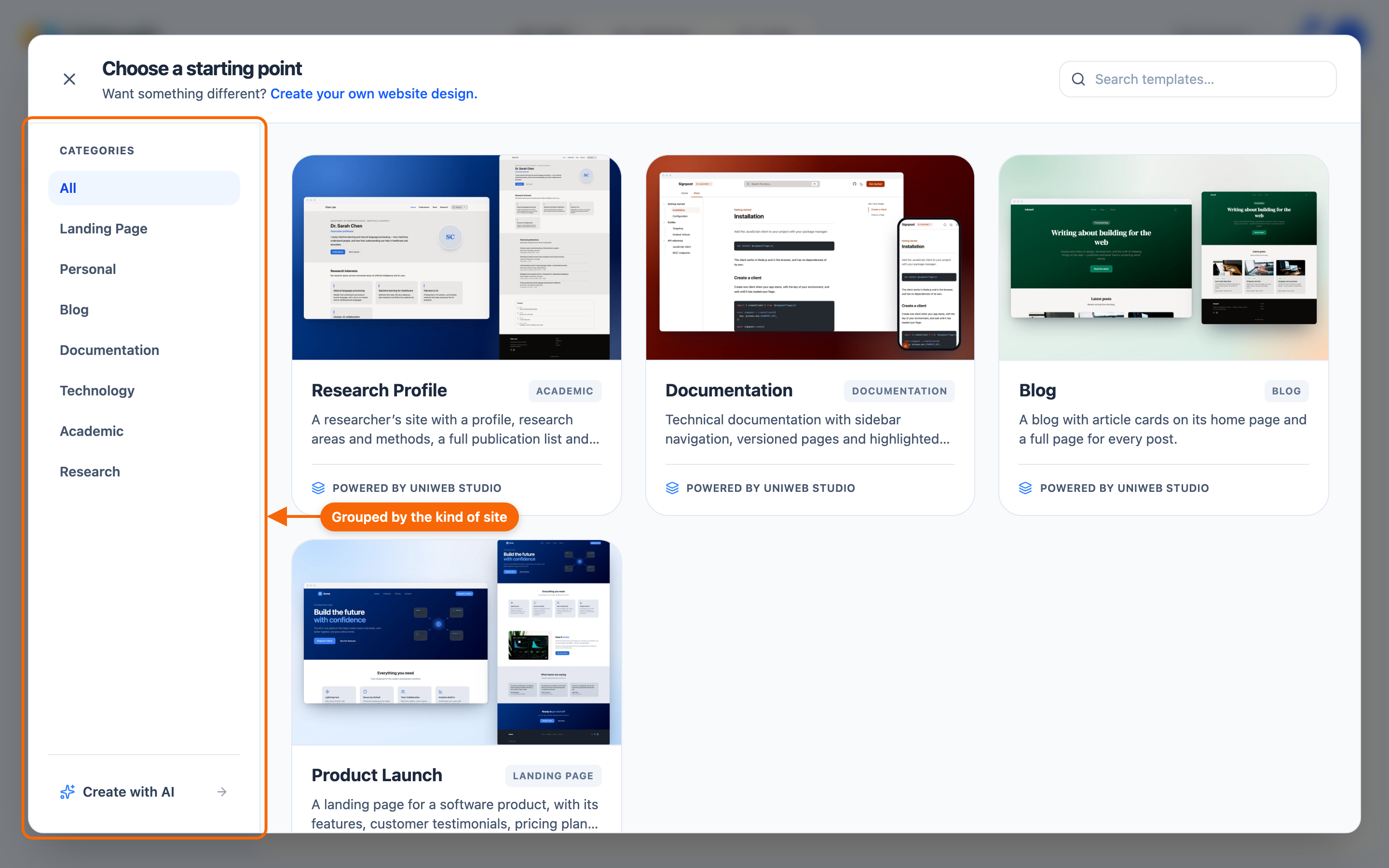
From the Hub, click New: it opens the template picker, Choose a starting point. Most sites start from a template — a starter site with a design system already chosen, sample content and a suggested set of pages. There is no blank-site option. The picker also offers Create your own website design and Create with AI, where an AI agent or your own code builds the site and its design.
⭐ This is the one choice you cannot change later, so it is worth a minute. The template decides the site's design system, and a site keeps the design system it was created with — see Updating the design system below. Everything else is yours to rearrange: the pages, the sections and every word in them.
Templates are grouped by the kind of site they suit — Landing Page, Personal, Blog, Documentation, Technology, Academic, Research. The template does not change what the site costs to publish. See Foundations and templates and Site pricing.
The views you'll use
A website opens on its Pages. From there — or from the buttons on the website's card in the Hub — you reach the other views:
- Pages — where you build: pages, sections and content; its Preview holds the Global Theme (colors and fonts).
- Records — the site's content folder, for linked content. See Folders.
- Settings — the site's name, published languages, favicon, design-system version, features, collaborators, publishing (Deploy), domain and billing. See Site settings.
- Inbox — submissions from your site's forms.
- Analytics — visitor analytics; the card's button calls it Stats. See Inbox and Analytics.
You publish from the Site menu (Publish, or Republish once the site is live) or from Settings → Deploy.
Reusing a site as a starting point
There is no "duplicate this site", and no way in the app today to turn one of your sites into a template others can start from — every new site starts from the gallery (Choose a starting point).
Updating the design system
A site keeps the design system it was created with. You can take a newer build of that same design system, and nothing else — the app puts it plainly: "Only versions of the current package are offered."
To do it, open the site's settings and find the Foundation card, which shows the current version and lets you set another. ⚠️ The change takes effect when you next publish, not when you save it.
⛔ You cannot swap one design system for another. The choice is made when the site is created, by the template you start from, and the app offers no way to change it afterwards. If a site needs a different design system, it needs to be built as a new site.
Renaming a site
You can rename a site in two places: its Settings → General (Site name), and Rename… on its card in the Hub.
The site's Uniweb address is a name of its own: chosen by you, or given to the site from its name at the first publish. Renaming the site doesn't change it; you change it in the site's Domain settings — see Domains.
Taking a site offline, and deleting one
These are different actions in different places, and only one of them is reversible.
Unpublish takes a live site off the web and keeps everything: the site, its pages and its content stay exactly as they are, and you can publish again whenever you like. It is in the site's Settings, under Hosting → Deploy, and appears only while the site is live. ⚠️ It acts immediately, with no confirmation step, and the site may stay reachable for a short while after — the app says so too.
Delete removes the site permanently — from the card's ⋮ menu (Delete…; disabled for anyone but the owner: "Only the owner can delete this website.") or the Site menu in any of the site's views (Delete site…). You will be asked to confirm. There is no undo. A site cannot be deleted while it still has any of these — clear them first:
- stored form submissions (export or delete them);
- a live publish (unpublish it);
- an active subscription (cancel it);
- a connected custom domain (disconnect it).
⇒ If you want a site off the web for now, unpublish it. Delete only when you are certain.