Folders
A folder is how content reaches a website. Every site has exactly one folder, created with the site, and the site displays what is in it.
A site's folder
Open a website's Records view and you are looking at that site's folder.
- Content you add here is available for that site to display.
- You can create subfolders to organize it.
- The site reads subfolders too, so content in a subfolder is found.
⭐ A site's folder arrives with the site and stays with it — there is no folder to set up or connect before a site can show content. Inside it, New subfolder in the folder's side rail adds one; you can rename, delete and drag subfolders to nest or reorder them.
A site's folder is published and unpublished with the site, so its content goes live without any extra step: a site's Records folder has no Publish button of its own, only the Site menu.
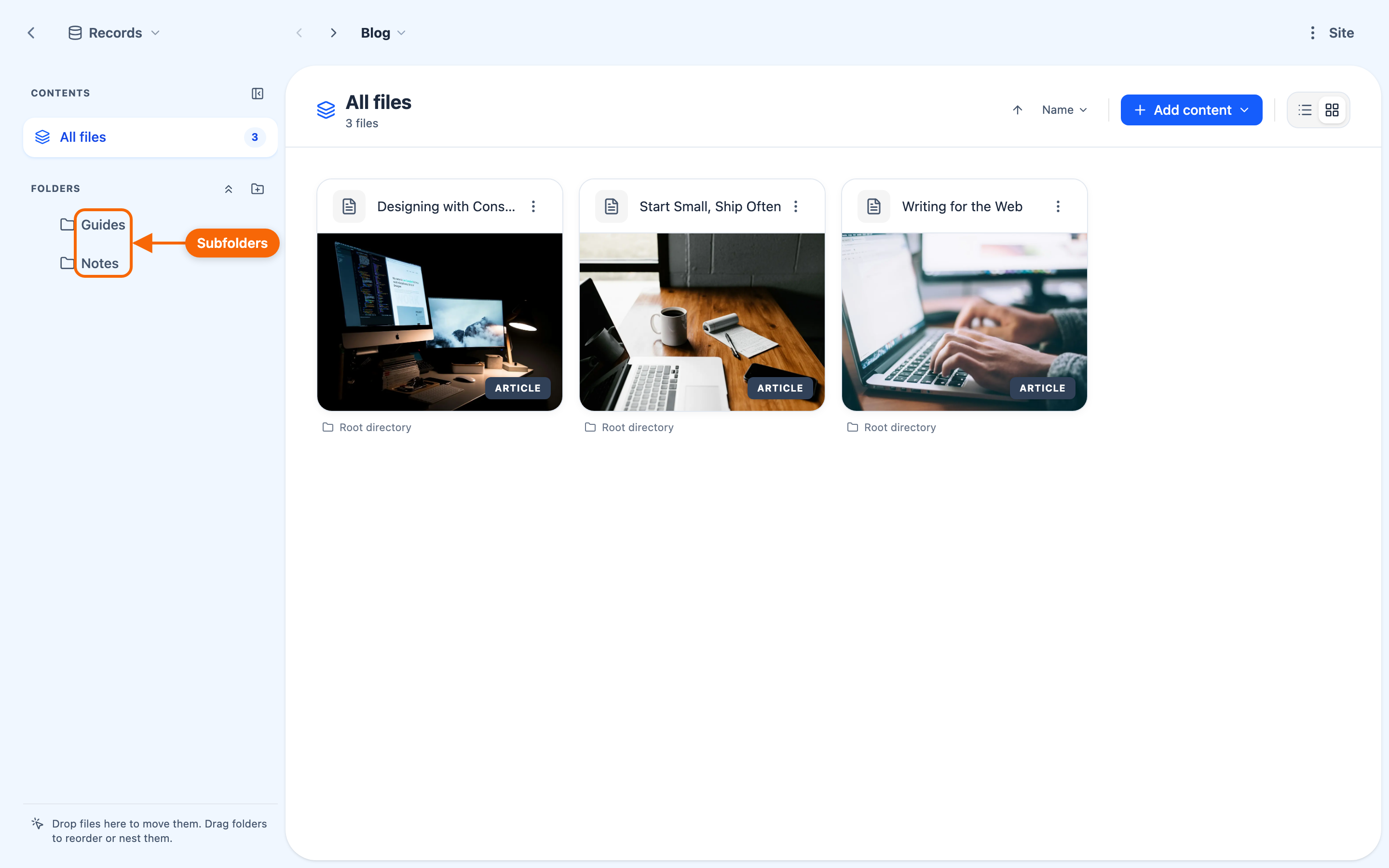
Adding and organising content
In the Records view, Add content offers:
- Create new entity — pick a content type, such as Article, to create an item right in this folder;
- Link existing → Browse library… — link content that already exists in your workspace. The folder holds a link to it, not a copy, so the same item can appear on several sites.
- Upload files… and External link… — these appear when the site's design uses files or links.
Creating an item opens a dialog with a Draft switch, so you can add it without it showing on the site yet.
Each entry's menu has Download, Rename…, Move to…, Tags… and Delete. Rename… sets both an entry's Name and its Identifier, for records and files as well as folders. You can switch between a list and a grid, filter by type or tag, sort, and select several entries to move or delete them together.
Sharing content without sharing the site
The thing folders used to be reached for — "let this person add blog posts, but don't give them the keys to the site" — is a role on the site rather than a separate folder:
Contributor lets someone add, organise and remove the site's Records while leaving the site's pages alone. See Roles and permissions.
Uploaded files in folders
Folders hold uploaded files — images, documents, media you upload directly — alongside structured items. These are ordinary files, distinct from structured content. See Creating library assets.
How this connects to what's on the site
A folder makes content available; a section configured to display that content is what actually shows it. The two work together:
- put items in the site's folder, or a subfolder of it;
- give a section a query that lists that content type.
See Displaying content from the library.