Displaying content from the library
Some section types are designed to show library content — a blog list, a team directory, an events calendar — rather than hold content you type. This page covers configuring those sections. For getting content into a folder in the first place, see Folders.
How a display section works
A display section doesn't contain its content; it shows what a query picks from your site's Records. A query is a saved selection — "the latest articles", say — with a name, so several pages and sections can use the same one. Adding the section doesn't ask about records: you choose the query afterwards.
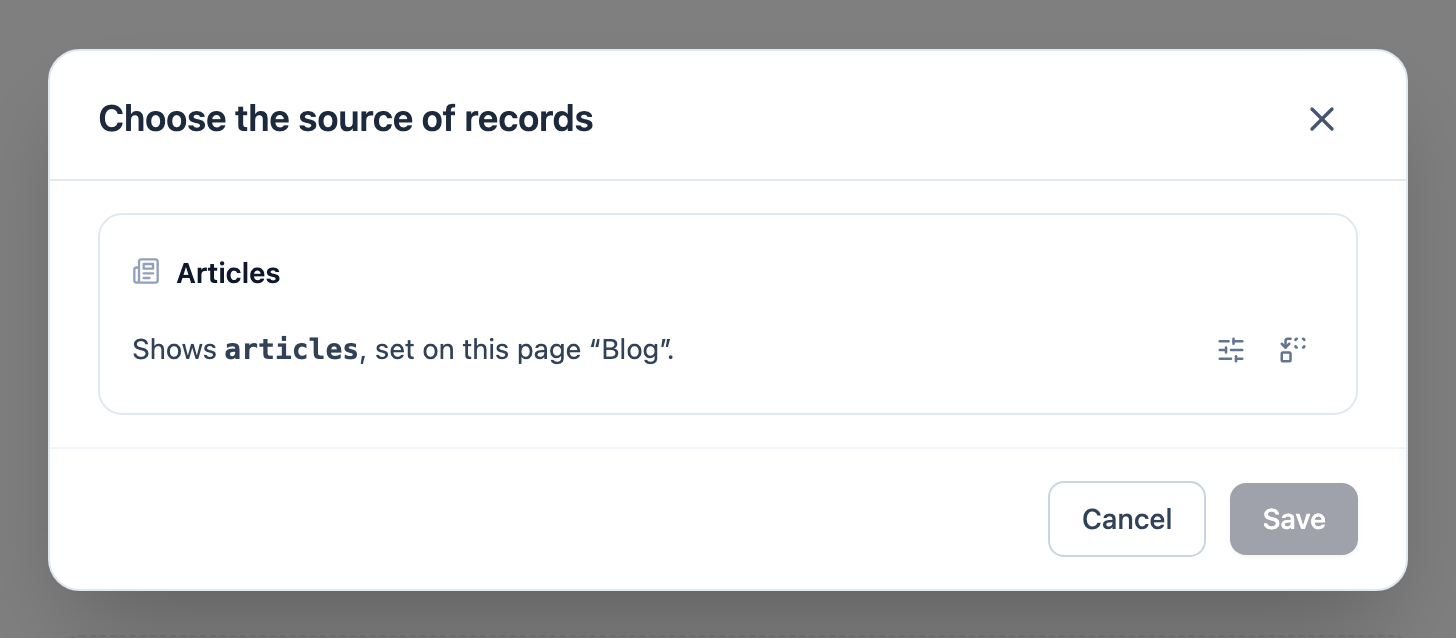
Under a display section on the canvas, a Records strip says what it shows:
- "shows latest-articles · from this page" — the section uses its page's query, and there is nothing to do;
- "No query is chosen for this yet." — press Choose a query….
You can also open Record source from the section's toolbar (the database icon), or for a whole page from the page menu → Record source…. The dialog, headed Choose the source of records, lists the queries that fit, then + New query…. A query you create there becomes that row's choice when you return to the dialog; press Save to keep it.
A query has these fields:
- Lists — the content type (filled in for you);
- Name;
- Only records where — conditions; with none, every record of the type;
- Order — Folder order keeps the order they have in the folder;
- Limit;
- In the folder — optional; only records in that folder or folders inside it.
While you edit, Matches counts what it finds and Used by lists the pages and sections using it.
To show fewer items in one place without changing the query, use Narrow down query results in Record source: its own conditions, order and At most. It can only reduce what the query returns.
All the site's queries are in the Site menu → Queries…. A query that is in use can't be deleted, and renaming one updates everything that uses it.
What you control vs. what the design system controls
You control which content appears — through the query: type, conditions, order and limit. You don't control how each item looks — which fields show and how they're laid out is decided by the section's design, not by options you set. That's the usual Uniweb split: you choose the content, the Foundation handles the presentation. See How Uniweb works.
A worked example: a blog
- Create your posts as Article items in the library. See Creating library assets.
- Put them in the site's folder, or a subfolder of it. See Folders.
- Add a blog-list section, then Choose a query… → + New query…: Lists = Articles, the order you want, and a limit. Create query, then Save.
- Optionally add a teaser section to the homepage that uses the same query, with Narrow down query results → At most 3.
Now publishing a new post is just adding an Article to the folder — both the blog list and the teaser update on their own.
If content isn't showing
Walk the chain: does the section have a query (look at its Records strip)? Does the query list the item's type? Are its conditions, a folder, or a limit leaving the item out? Watch Matches as you adjust it. Is the item still a draft? See Troubleshooting.