Creating library assets
Library assets are the structured items — Articles, Events, People, and so on — that you display on sites through folders. This page covers creating and managing them. For what they are, see About the content library.
Creating an item
Library items are created from their type. In the Hub's sidebar, open the type under Content Library — Articles, say — and click New on its page. (The Hub's own New button creates a website.)
⭐ Content types appear as your sites use them — the Content library lists the types your workspace works with, rather than a catalogue up front.
⛔ Folders are not created here. A site's folder comes with the site — see Folders.
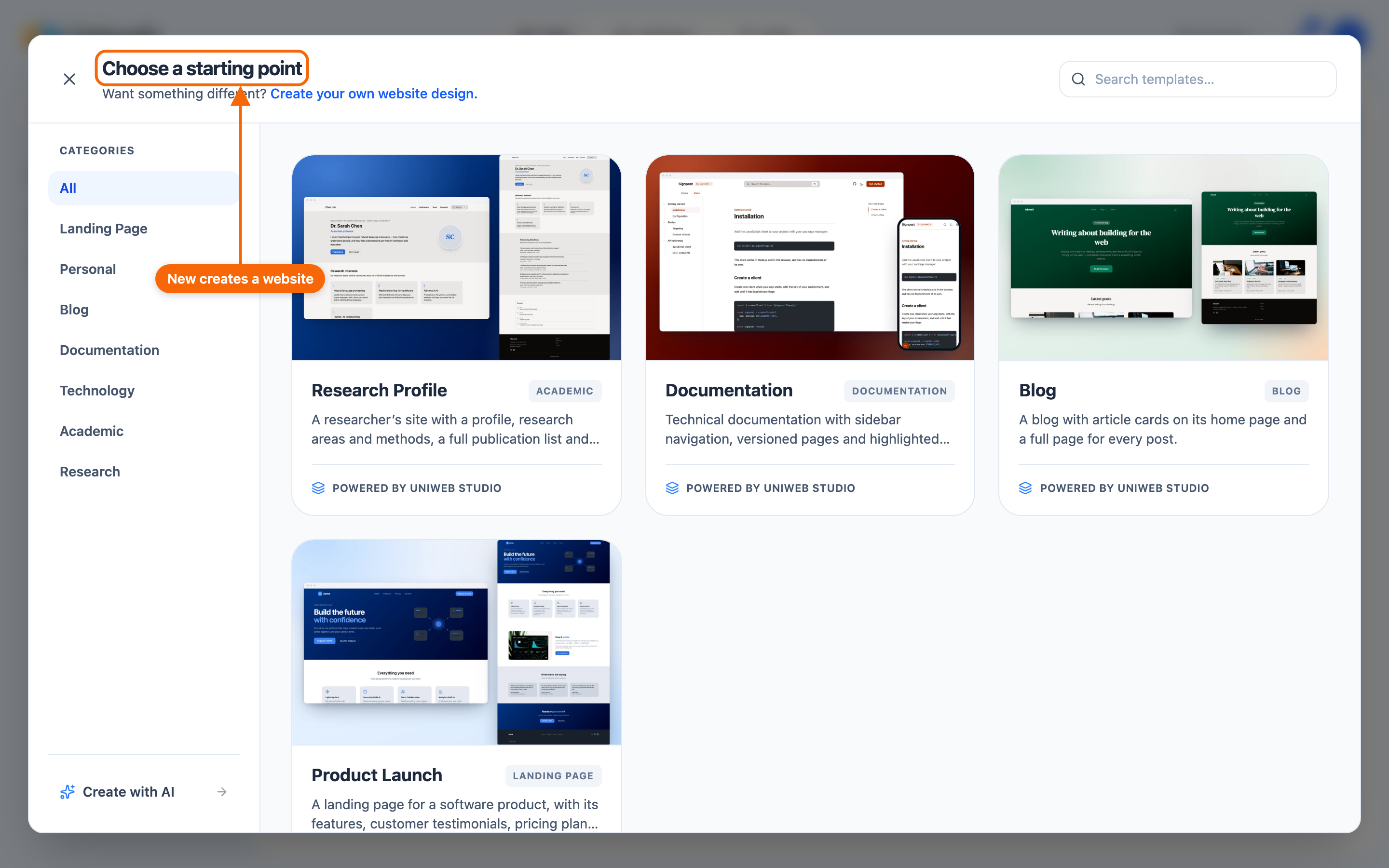
To create an item:
- Choose the content type.
- Fill in its fields (an Event's dates and location; a Person's bio and contact info).
- Save. The item now exists in your library.
At this point the item is not on any website yet. To display it, add it to a folder a site reads from and make sure a section is configured to show it — see Folders and Displaying content from the library.
Editing an item
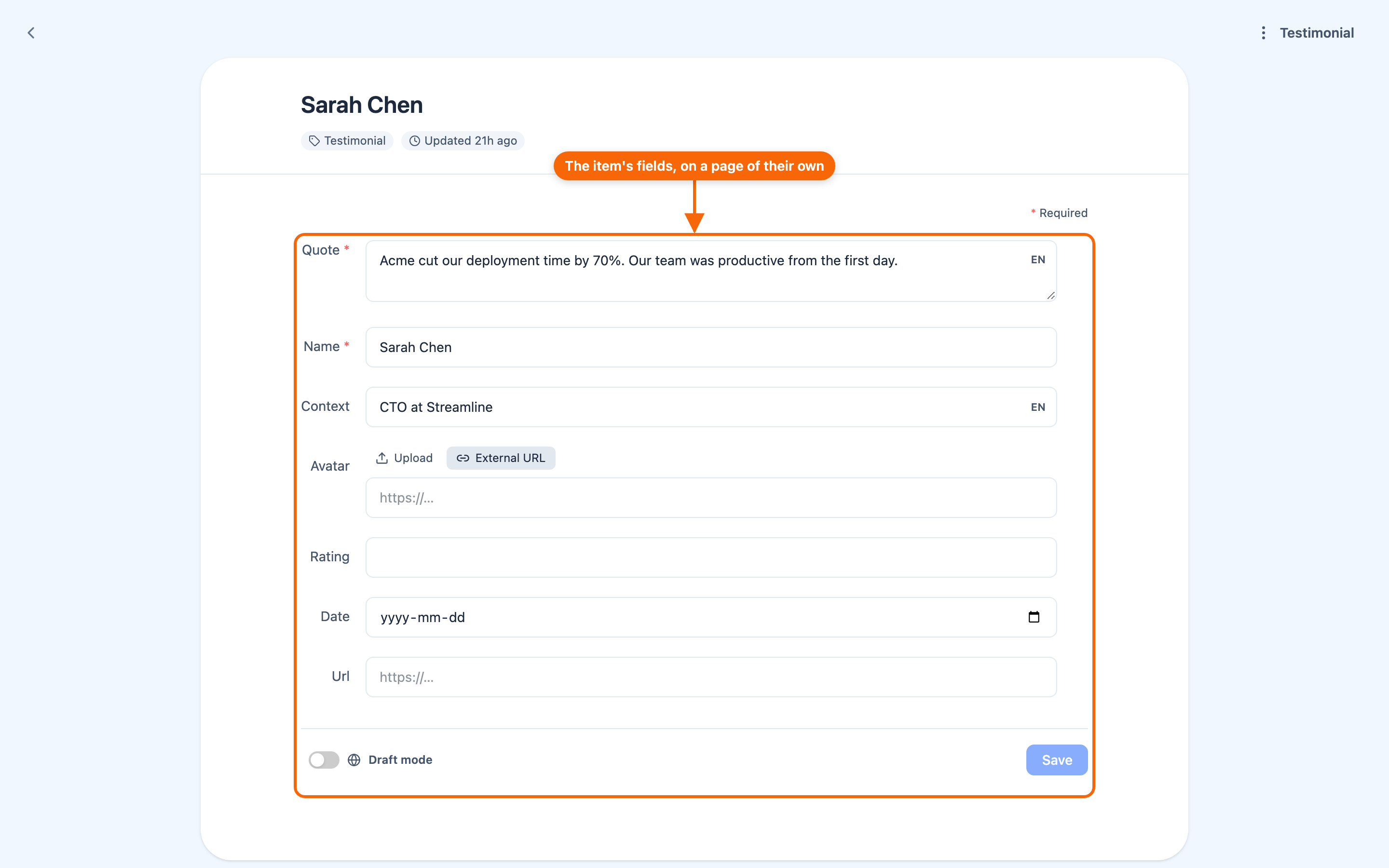
Open any item to edit its fields. An Article opens in the article editor, with the item menu described below. Other types — a Testimonial, say — open on a page of their own: the item's fields (the required ones marked with an asterisk), the language a text field is in (EN), the Draft mode switch, and a Save button. Their ⋮ menu, named after the type (⋮ Event), has Languages… and Delete content….
Because the item is the single source, editing it updates every site and folder where it appears — automatically, with no republishing. That's the point of linked content.
The item menu
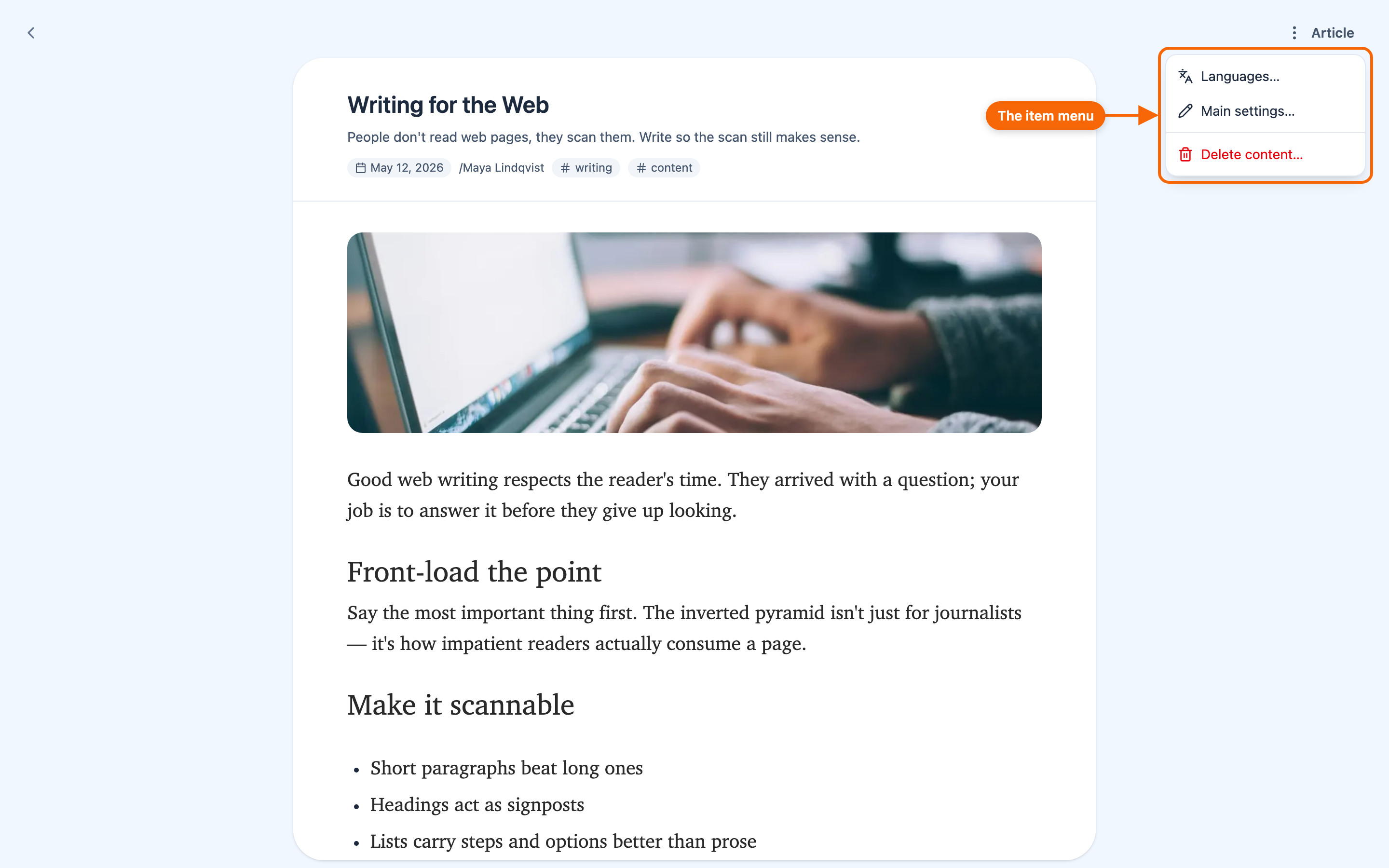
When you open an Article, the menu at its top right — ⋮ Article — holds everything about the item itself (Main settings… and SEO… appear only where the type defines them; other types have Languages… and Delete content…):
- Languages… — which languages the item has; the one you wrote it in is its source.
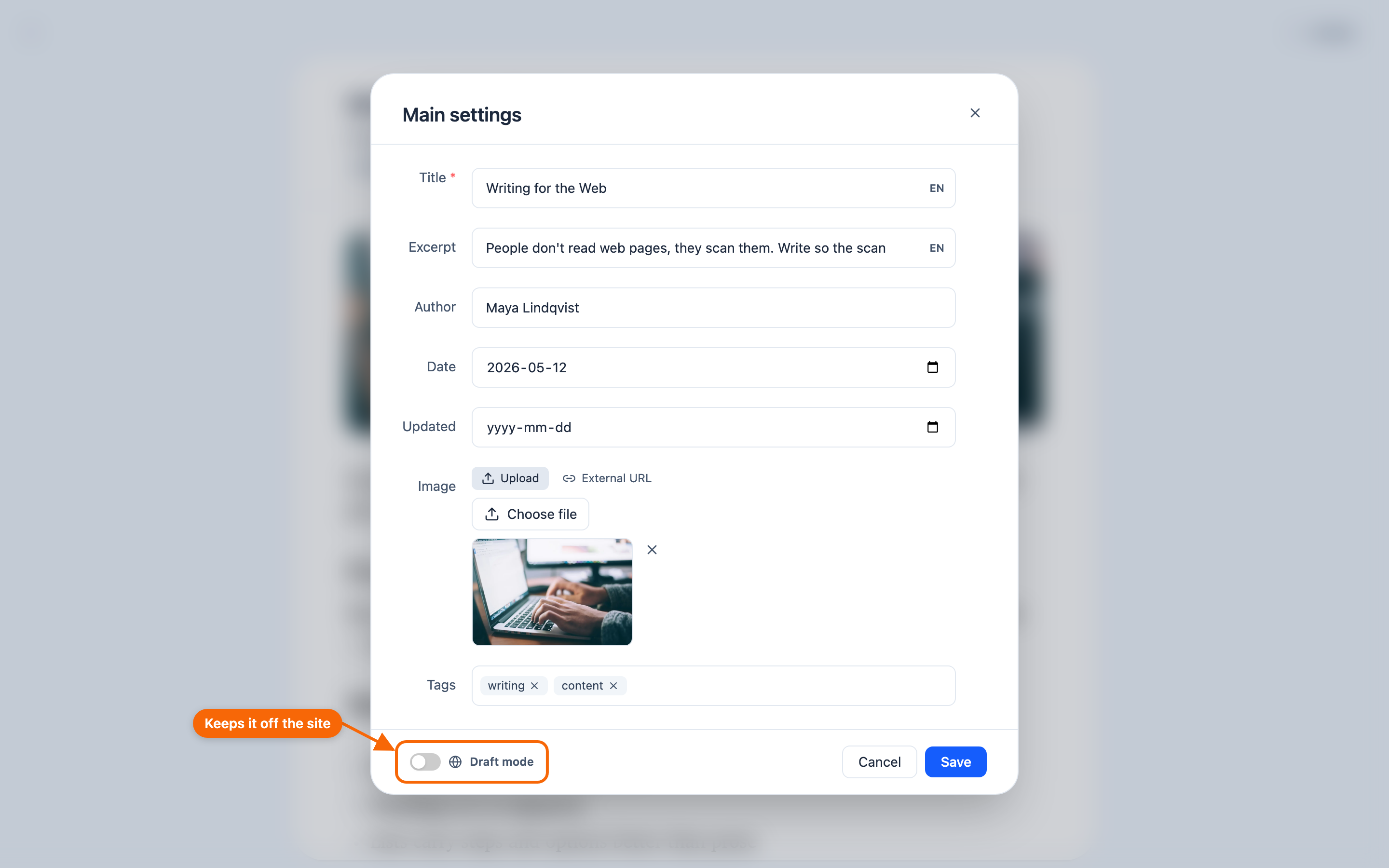
- Main settings… — its title, slug, excerpt, date, image and tags, and the Draft mode switch.
- SEO… — the title, description and image search engines and link previews show, and Noindex to keep it out of search results.
- Delete content… — removes the item.
Keeping an item off the site: Draft mode
An item in a site's folder is on that site — wherever a section shows the folder's content — unless you switch on Draft mode in its Main settings. There is nothing to share or grant for an item to appear: being in the folder is what puts it there, and Draft mode is what holds it back.
Uploaded files vs. library assets
Folders can also hold uploaded files — images, documents, media you upload directly. These are distinct from library assets: an uploaded file is a file, while a library asset is a structured item with fields. Both can live in folders. See Folders.
Where to go next
- Folders — how items reach a site.
- Displaying content from the library — showing items in sections.