Projects
A project is a workspace of its own inside an organization. Its members see only what's in it, so you can work on a website with people from outside your organization — a client, say — without showing them anything else.
Projects, sub-organizations and the organization
| Who is in it | What they see | |
|---|---|---|
| Organization | its members | the organization's workspace — not what's inside its projects |
| Sub-organization | its members, who also belong to the organization above it | its own workspace, and the content of the organization above |
| Project | the organization's members you add, plus guests from outside | only what is in the project; the organization's administrators can manage it too |
A guest is a project member who isn't a member of the organization. Guests work on what's in the project, but they can't start new sites there, and they can never be the project's admin.
Seeing your workspaces
Your avatar menu lists your workspaces: your personal one, your organizations, and your projects, with a folder icon. Once you have more than five projects, they move to a group of their own, Recent projects: the five you opened most recently in that browser. All workspaces… opens the Workspaces page. Choose an organization on the left to see its sub-organizations and its projects, with Open workspace for each.
Projects belong to organizations, so your personal workspace has none.
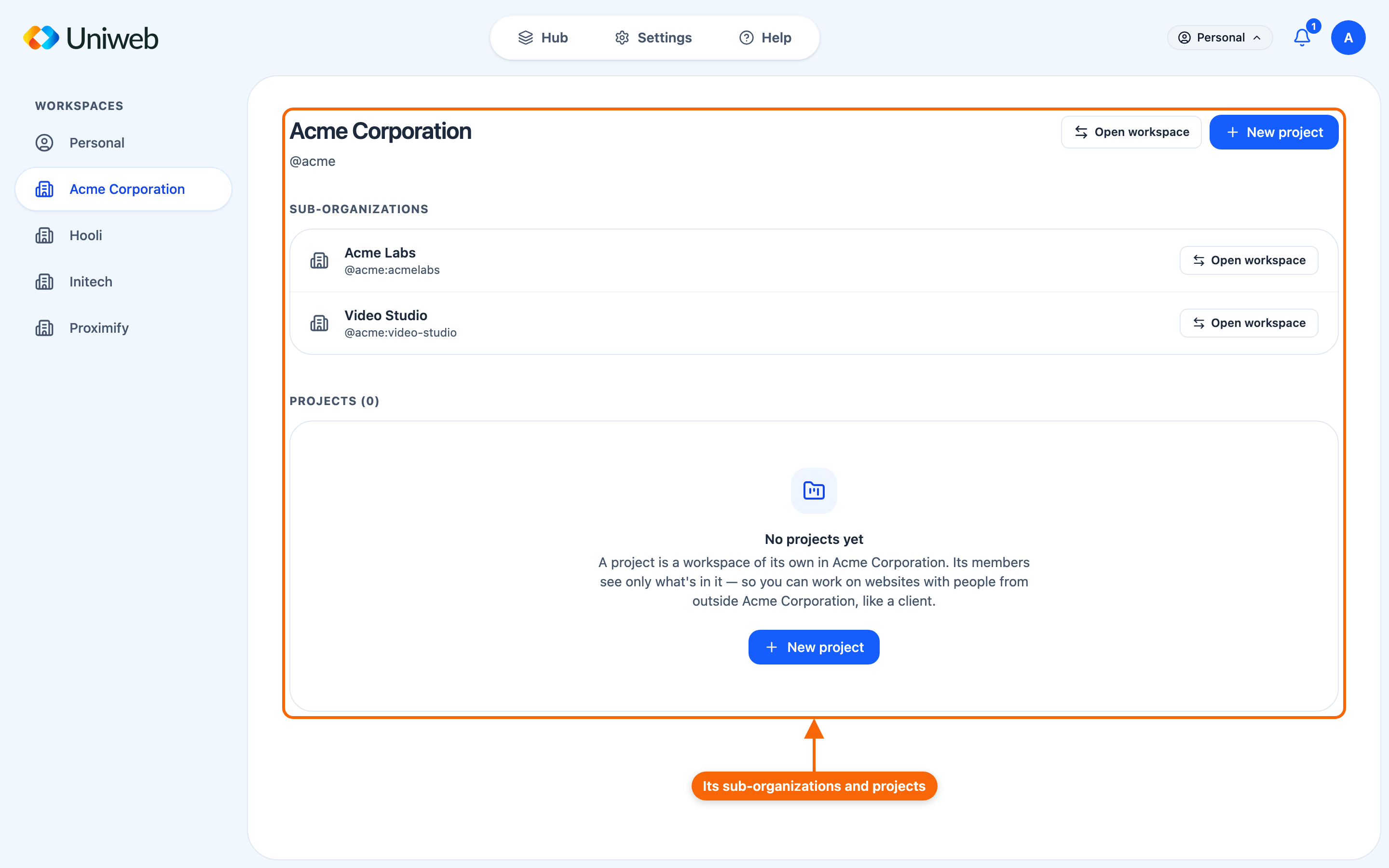
Starting a project
Any member of an organization can start a project in it. On the Workspaces page, choose the organization, then New project:
- Name — what everyone sees, e.g. Northwind website.
- Handle — its address in the app, like
/@acme:northwind. ⚠️ It can't be changed later. - In — shown when there's a choice (you belong to a sub-organization): the organization, or one of its sub-organizations. "The administrators of the organization it's in can manage it too." ⚠️ This can't be changed later either.
Then Create project. You are its admin.
Turning a site into a project
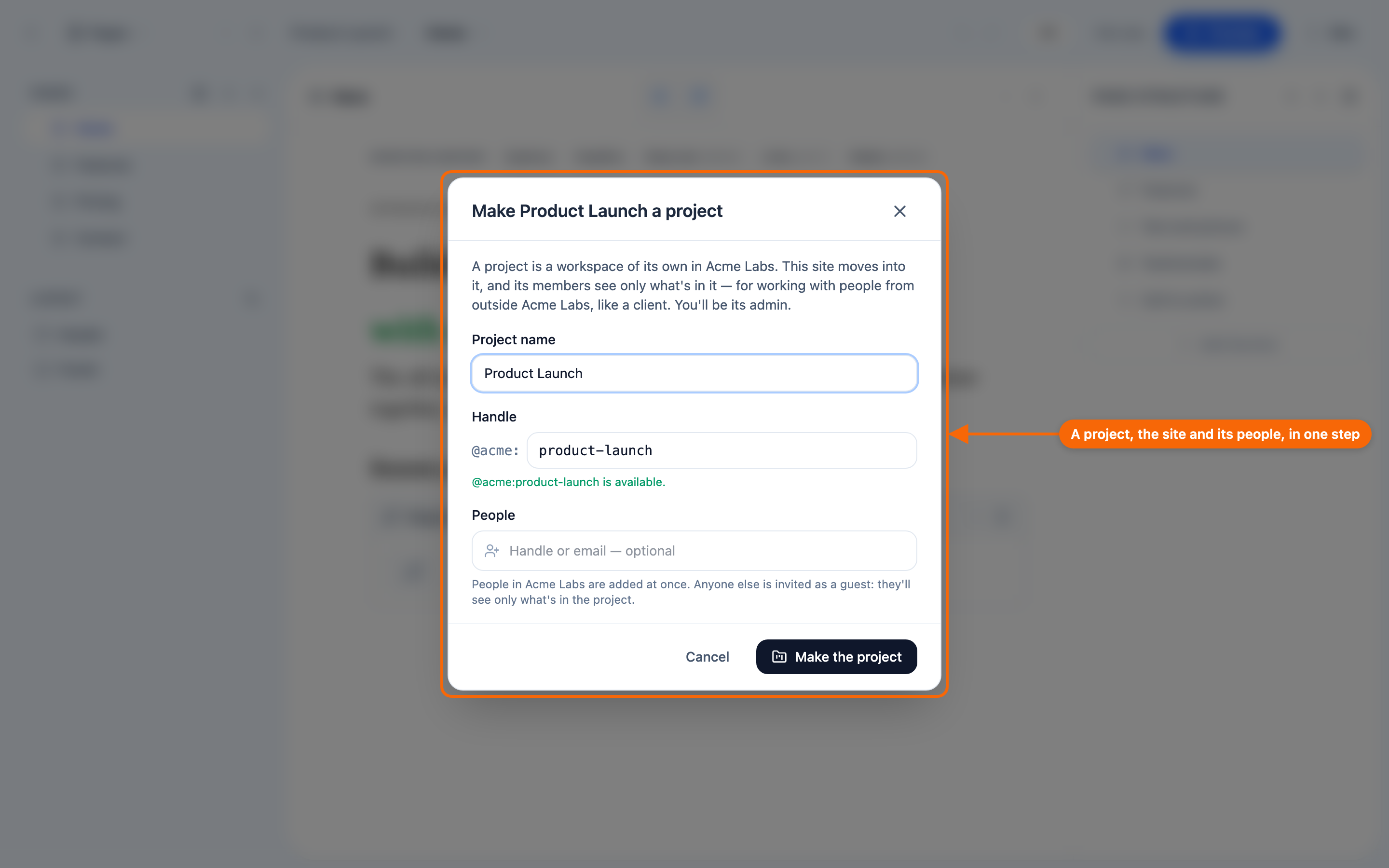
When the work starts from a site you already have, open that site and use Site menu → Make a project…. In one step it creates the project, moves the site into it and brings people in:
- Project name starts as the site's name, and Handle is suggested from it.
- People (optional) — "People in [your organization] are added at once. Anyone else is invited as a guest: they'll see only what's in the project." Enter a handle or an email address. Someone without an account gets an email invitation.
Then Make the project. You are its admin.
The project is made in the organization the site is in: for a site in a sub-organization, in that sub-organization. A site that is already in a project gets a new project beside it, in the same organization. Either way the handle starts with the top organization's, like @acme:….
Make a project… and Move site… appear only for a site in an organization's or a project's workspace, and only to members of that organization — a project's guests don't see them, and neither does a personal site.
Moving a site between the organization and its projects
Site menu → Move site… moves the site to another place in its organization: into a project, from one project to another, to a sub-organization, or back to the organization itself. Choose where, then Move.
- "The records only this site uses move with it." Records that other sites also use stay where they are.
- "Nobody is added anywhere." If the owners of what's moving aren't members where it's going, the dialog offers to add them (or to invite them, if they aren't in the organization).
- A move that would cut someone off from a site shared with them is refused, and the dialog names who. When the destination is a project, it offers to Add them to the project and move.
- What stays the same: who owns the site, who pays for it, and its published site.
Managing a project
On the Workspaces page, each project card's ⋮ menu has Members…, Rename…, Leave project and, for admins, Add a picture… (or Change picture…). In a project's members, Add brings people in: organization members join at once, and anyone else is invited as a guest. A project an organization administrator manages without being in it shows as Not joined, with Join project….
Move site… can't take a site to a different organization, and a personal site or a template can't be moved this way.
Where to go next
- Organizations — members, sub-organizations and leaving.
- Roles and permissions — what each role can do.
- Working together — editing the same site at once.