Translating content
Translation in Uniweb works section by section, so you keep control of each part of a page. You can translate by hand, let AI do a first pass, or mix the two. This page covers how it works. For adding languages and choosing which go live, see Multilingual sites.
Section-by-section, structure-aware
You translate in the Editor, switching between languages to see and edit each version. The translator understands your content's structure — paragraphs, headings, lists, and media — so a translation keeps the same shape as the source and can reuse assets (like images) across languages.
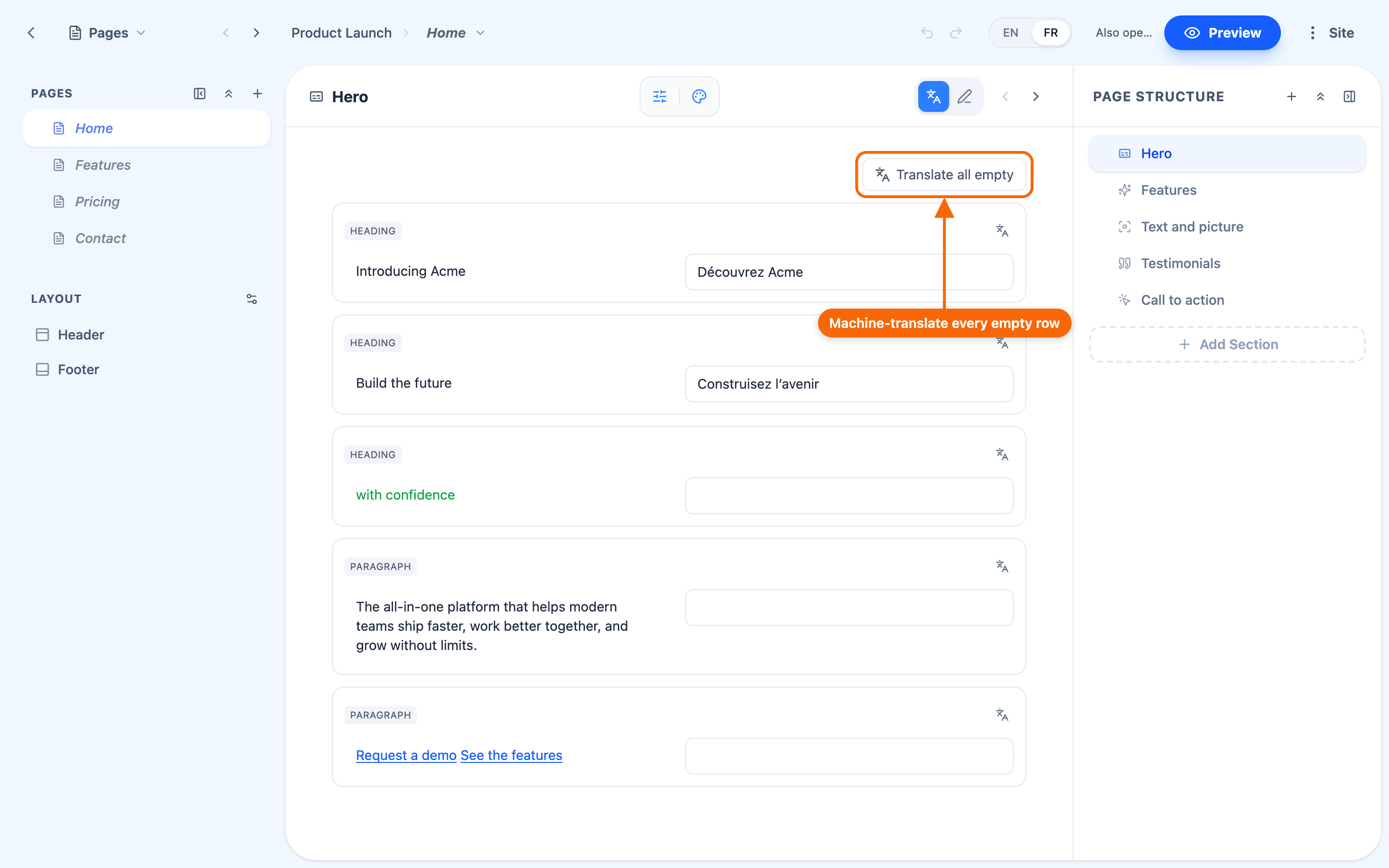
In translation mode each piece of the section is a row — the original on the left, its translation on the right. A row still to translate is empty; that is the one signal of what's left, and Translate all empty stays available while any row is (where machine translation is available — see below).
Three ways to translate
- AI translation — automated, to get a draft quickly.
- Manual translation — write or refine the wording yourself.
- A combination — let AI do a first pass, then review and polish by hand. This is what most people end up doing.
When a language needs different content
Sometimes a language shouldn't be a literal translation — a different market wants different messaging, not a word-for-word copy. While you are editing a language other than the primary one, a section offers two modes:
- Translation mode — the section mirrors the primary language, and you supply the wording.
- Custom content mode — the section carries its own content in that language, independent of the primary one.
Switching a section from Custom content back to Translation mode asks you to confirm first (Change render mode) — "Changing the render mode will remove all custom content": the custom content is lost. Choose the mode before writing a lot in it. Switching the other way, to Custom content, starts from the existing translation, or from the original if there is none.
Translating in bulk
In translation mode, each section has Translate all empty — "Machine-translate every untranslated element" — and each row its own Machine-translate button. It works section by section; there is no single control for the whole site. Both appear only where machine translation is available; otherwise the grid has neither, and you translate by hand.
⚠️ "Pending" means empty. An item counts as needing translation when it has no translation at all. If you edit the original after translating it, nothing marks the translation as out of date — so a change to your primary language is yours to carry across by hand.
⛔ Publishing translates nothing. There is no auto-translate step at publish time: translate first, then publish.